Introduction
Ever checked Canvas and thought, “Why does my grade look wrong?”
Canvas plays a huge role in how students and teachers track progress in U.S. colleges and schools. It centralizes scores, averages, and results, but beginners can find the system confusing due to setup issues or misunderstandings that lead to incorrect grades, possibly impacting course results and GPA if unnoticed.
This guide on Common Canvas Grade Errors and How to Fix Them is designed to clear up typical issues. While problems like missing grades, wrong totals, or confusing percentages can occur, most aren’t serious—if you know where to look.
In this article, you’ll learn why Canvas grades go wrong and how to fix them step by step. You’ll gain the tools to spot grading errors early, avoid confusion, and communicate effectively with your instructor. We’ll explain how the gradebook works, highlight common mistakes students make, and share simple tips to avoid future issues. You’ll also learn basic Canvas gradebook troubleshooting skills you can use anytime.
By the end, you’ll feel confident reading your Canvas grades, and by the end, you will know how to check Canvas grades correctly and confidently—no panic or guesswork needed.
Canvas Grade Not Showing – Causes & Fixes
A missing Canvas grade is a common problem. After submitting work, students may see no score or just a dash, often causing stress about grade calculation or GPA impact.
Most missing grade issues have simple causes and quick fixes. Common reasons involve instructor settings, submission status, or app sync—not system errors.
Use the Canvas Grade Calculator to track your grades and confirm your final score. It’s simple and accurate.
Why Your Canvas Grade Is Not Showing
When a Canvas grade is not showing, it’s unlikely that you failed. Canvas follows set rules before displaying grades, so if something isn’t visible, it simply means a specific condition hasn’t been met yet. Rest assured, your grade will usually appear as soon as everything is in place.
Common reasons include:
- The instructor has not posted the grade yet.
- Grades are muted for the whole class. (Muted means the instructor has chosen to hide grades from students until all grading is finished.)
- You submitted the assignment late.
- The assignment is still under review.
- You’re checking the Canvas mobile app with sync issues. (Sync means the app has not updated to show the latest grades.)
Canvas also hides grades if assignments are ungraded. Many students confuse this with zeros. This misunderstanding is one of the common mistakes students make in Canvas grades.
Pro tip: Ungraded does not always mean zero. This matters when you try to interpret the Canvas gradebook correctly.
How to Fix Canvas Grade Issues (Step-by-Step)
Before assuming a grading error, follow these steps: Open your course, go to Grades, select the assignment, check for status labels, refresh or log back in, update the app or try a desktop, and contact your instructor if needed.
- Click the specific assignment for detailed status.
- Check for labels like “Muted” (hidden grades), “Missing” (not submitted), or “Late” (submitted after the deadline).
- Refresh the page or log out and back in.
- Update or restart the Canvas mobile app.
- Switch to a desktop browser if possible.
- Politely message your instructor if needed.
If the issue persists, it may be part of broader Canvas gradebook troubleshooting.
Takeaways:
- Missing grades are usually settings-related.
- Always check assignment details first.
- Contact instructors only after basic checks.
From my experience: I once submitted a big assignment and saw a dash instead of a grade. I panicked at first, but I checked the assignment details and realized the instructor had muted it. Once the grade was released, everything updated correctly. That small check saved me hours of unnecessary worry.
Canvas Grading Weights Not Adding to 100 – How to Fix
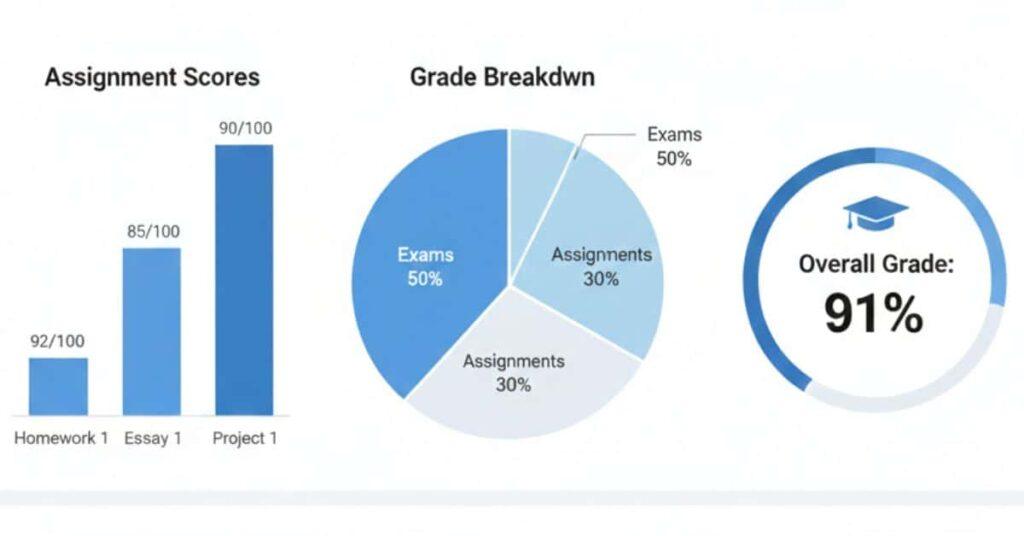
Canvas calculates grades using assignment group weights. If these weights do not total 100%, your final grade may appear incorrect.
Setup errors, not Canvas’s calculations, cause incorrect weights. Students and instructors often misinterpret these weights. Follow this approach to prevent mistakes:
What Weighted Grading Means in Canvas
Canvas groups assignments and assigns each group a percentage weight. It combines these weights to calculate your total grade.
For example:
- Exams: 50%
- Quizzes: 30%
- Homework: 20%
These weights must equal 100%. Otherwise, Canvas displays confusing results. This often leads students to misunderstand their gradebook.
Common mistakes:
- Weights exceed 100%.
- Extra credit groups counted twice.
- Dropped groups are still included.
These errors are common Canvas gradebook issues.
How to Fix Canvas Grading Weight Issues (Step-by-Step)
Follow these steps:
- Second, click settings or assignment group options to view assignment weights.
- Third, check if the weighted grading option is enabled in your settings.
- Fourth, add up the percentages of all assignment groups to find the current total weight.
- Fifth, adjust group values as needed until the total equals exactly 100%.
- Save changes and refresh the page.
Students: ask your instructor to check the weights. This step resolves most Canvas grade issues quickly.
Example of Proper Weight Distribution
| Assignment Group | Weight |
|---|---|
| Exams | 50% |
| Quizzes | 25% |
| Homework | 20% |
| Participation | 5% |
| Total | 100% |
Takeaways:
- Canvas requires weights to equal 100%.
- Small setup errors cause big grade confusion.
- Always double-check weights early in the course.
How to Interpret Canvas Gradebook Correctly
Many students see confusing numbers in Canvas and assume something is wrong. Because misunderstanding the gradebook leads to panic, it’s essential to know that each column has a different meaning and, if misread, can make your grade look misleading.
Canvas does not guess grades. It follows strict rules based on assignment status and weights. To avoid confusion or errors, learn how each column works and how grades are calculated before moving on to the specific columns discussed below.
Understanding Canvas Gradebook Columns
The gradebook shows more than just one score. Each column plays a role in your total grade.
Assignment grades: These are the numerical or letter scores for individual tasks, such as quizzes, homework, or projects, as entered by the instructor.
- Assignment groups: These are categories that group related assignments, like exams or homework, to organize and weight them in your total grade.
- Current grade: This shows your average score based solely on assignments that have already been graded and does not consider missing or ungraded assignments.
- Final grade: This includes both graded and ungraded (including missing) assignments, reflecting what your grade would be if no further work is submitted.
Dropped grades: If enabled, the lowest score in an assignment group is removed from your total grade to boost your average potentially. Extra credit: These are additional points that can be earned beyond regular assignments without affecting assignment weights. Both features can cause confusion during Canvas gradebook troubleshooting.
Pro tip: Always click an assignment name to see details.
Final Grade vs Current Grade: Know the Difference
Many students make the mistake of trusting only the current grade. This is one of the common mistakes students make in Canvas grades.
Important differences:
- Current grade: Ignores ungraded assignments.
- Final grade: Counts missing and future work.
- Ungraded items may show as dashes, not zeros.
If a grade is missing, Canvas grade not showing does not always mean an error. It may be ungraded.
How Canvas Handles Missing or Ungraded Work
Ungraded: Assignments that have been submitted but have not yet received a score are not yet counted in your overall grade.
- Missing: Assignments that were not submitted by the due date and have not been graded are often automatically counted as zero points.
- Late: Assignments submitted after the deadline may include penalties, such as point deductions, as determined by instructors.
Understanding this helps you fix Canvas grade issues early.
Before reacting, verify the meaning of each gradebook column.
- Review each assignment’s score and feedback for clarification.
- Contact your instructor if your grades remain unclear after checking.
Common Mistakes Students Make in Canvas Grades
Many grading issues come from user mistakes, not system bugs. In Common Canvas Grade Errors and How to Fix Them, this section highlights habits that cause confusion and stress. Students often trust the numbers they see without checking details. Minor misunderstandings can quickly turn into significant Canvas grade calculation errors.
Now that you know the root of these common mistakes, it’s essential to see how to put this awareness into practice. Transitioning from awareness to action can save hours of Canvas gradebook troubleshooting. Here’s how to apply this effectively:
Pro Tip: Unsure if your assignment weights are correct? Try the Canvas Grade Calculator to see your final grade instantly.
Mistake 1: Submitting Assignments Late or Misreading Weights
Late submissions often trigger penalties. Canvas applies these rules automatically if the instructor enables them.
Common issues include:
- Assuming late work has no penalty.
- Ignoring assignment group weight.
- Thinking that all assignments count equally.
Focusing only on percentages is risky—a low score in a high-weight group hurts more and often leads to confusion when grading weights don’t add up to 100.
Pro tip: Always check the assignment group weight first before moving on to other grading considerations.
Mistake 2: Confusing GPA With Course Grades
Canvas shows course grades, not your GPA. Many students think one directly equals the other.
Key differences:
- Course grade: Based on one class only.
- GPA: Averages grades across all courses.
- Extra credit may affect one class, not GPA, equally.
This misunderstanding leads students to panic when Canvas grades don’t match expectations.
Mistake 3: Using Incorrect “What-If” Calculations
Canvas allows “what-if” scores. Students often enter the wrong values.
Common errors:
- Forgetting assignment weights.
- Ignoring dropped grades.
- Misreading ungraded work as zero.
This leads to false predictions and stress. With these pitfalls in mind, consider these strategies to avoid common errors.
Tips to Avoid These Mistakes
- Review assignment details weekly.
- Learn how to interpret the Canvas gradebook correctly.
- Use reliable calculators to double-check results.
Most errors are avoidable with attention: Double-check assignment details, weights, and grades. Make sure you know what your Canvas grade means and how to use “what-if” tools.
- Focus on details like assignment weights, submission times, and dropped grades. These details often have a greater impact than percentages alone.
- Commit to understanding how Canvas calculates your grades. Apply these tips consistently to avoid common mistakes and take control of your academic performance.
Quick Tip: Double-check your total grades using our Canvas Grade Calculator. It helps you spot errors fast and avoid confusion.
Conclusion
Understanding your grades does not have to be stressful or confusing. In this guide, we covered common Canvas grade issues, why they happen, and how to fix them step by step. From missing scores to weight problems, each solution helps you stay in control.
Fixing Canvas grade errors starts with knowing how Canvas works. Check details early. Many problems, like a Canvas grade not showing, are due to settings and are easy to resolve. Regular troubleshooting can protect your grade and prevent surprises at term’s end.
Review your Canvas gradebook every week. If you notice an error, email your instructor immediately. To confirm your grades, use a trusted Canvas grade or GPA calculator.
If this guide helped, share it with classmates to boost everyone’s success. Explore more Canvas tools and resources on our site to stay ahead all semester.

Hi, I’m Zohaib Ali, a BS-IT student at the University of Engineering and Technology. 🎓 I created CanvasGradeCalculator.com to make grade and GPA calculations simple, accurate, and stress-free for students, teachers, and parents. Passionate about tech and education, Helping learners plan smarter, study better.