

Table of Contents
Introduction
Are you a teacher new to Canvas and tired of juggling spreadsheets and manual grade calculations for your students? Managing classroom grades can quickly become overwhelming, especially for educators handling dozens of assignments and multiple categories. For teachers in the USA just getting started with Canvas, accurately tracking grades is a challenge many face each semester.
The canvas grade calculator for teachers takes the stress out of grading by making accurate calculations quick and effortless. It streamlines weighted grading, tracks class averages, and allows for quick ‘what-if’ scenario analysis, eliminating common manual errors. Whether you teach high school or college, this tool gives you confidence in fair, mistake-free grading for every student.
This guide shows how the Canvas calculator works, why it’s more reliable than manual or other methods, and how to track individual and class performance. You’ll learn to avoid errors, save time, and simplify grading. By the end, you’ll have an efficient workflow for classroom grades.
Why Teachers Need a Canvas Grade Calculator
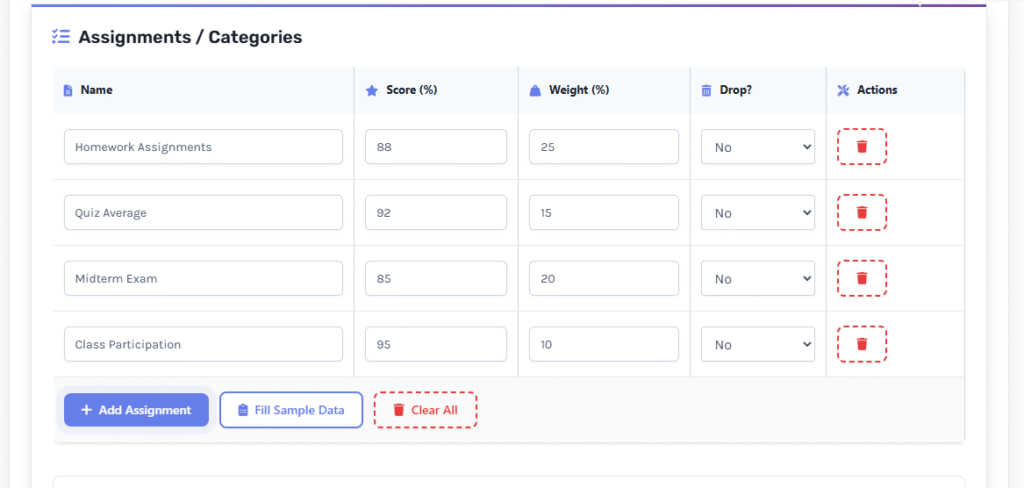
Managing grades gets complicated with many students, assignments, and grading rules. A Canvas grade calculator gives teachers a faster, more reliable way to manage scores without switching between spreadsheets or manual formulas.
You often deal with weighted and unweighted grades, late work, dropped assignments, and last-minute student questions. When everything is handled manually, it’s easy for numbers to slip or errors to appear. A calculator removes those risks and keeps your grades consistent.
With a clear layout, you can track assignment groups, weight percentages, and student scores in one place. It also gives you an instant view of class performance, helping you understand trends—like which units are harder or which students need extra help.
Another advantage is the “what-if” scenario feature. When students ask, “What do I need on the next quiz?” or “Can I still get an A?”, you can quickly adjust a score to show the new outcome. This saves time, builds transparency, and reduces confusion.
The calculator works for all academic levels. Adjust the grading scheme to fit your institution’s rules—high school, college, or professional training.
Key Takeaways
- Eliminates manual grade errors.
- Accurately manages weighted and unweighted grades.
- Provides instant class performance overviews.
- Answers student questions fast with “what-if” scenarios.
- Adapts to any academic or training level.
Set up assignment groups at semester start. This keeps your gradebook organized and prevents last-minute changes that confuse students.
From my experience: I used to spend hours manually calculating grades for my high school class. After switching to a Canvas grade calculator for teachers, I could instantly see student averages and projections. It saved me time and reduced errors, letting me focus on giving better feedback. My students appreciated the clarity and fairness, too.
Step-by-Step: Using the Canvas Calculator in Large Classes

Grading large classes can be slow. Use the Canvas calculator to organize scores and calculate grades efficiently. Follow these steps to manage grades quickly and avoid manual errors.
1. Access the Gradebook
Open Canvas and locate your course gradebook. This is where all student scores are displayed and where grading categories connect to the calculator.
2. Enter or Import Student Grades
Enter or upload scores for quizzes, assignments, projects, or exams. Import grades from a spreadsheet to populate the calculator quickly.
3. Set Assignment Weights
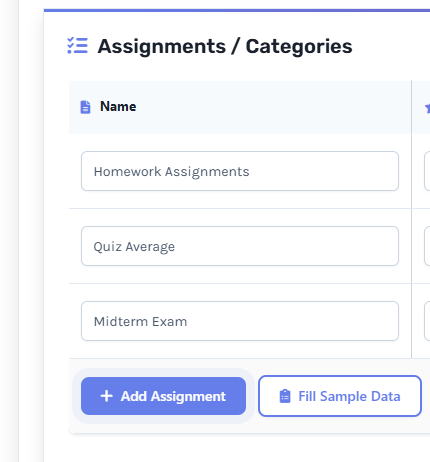
Select how much each assignment type counts toward the final grade. Examples include:
- Exams → 40%
- Assignments → 30%
- Quizzes → 20%
- Participation → 10%
Weighted grading ensures the final score reflects your syllabus.
4. Run the Calculations
Let the calculator total scores and apply weights. View current and projected grades without manual calculations.
5. Use the “What-If” Tool
Change an assignment or test value to see updated grades instantly. Use this to answer student questions about possible outcomes.
Practical Working Example
Here’s how the calculator handles a weighted grading setup:
- Assignments (30%): 80/100
- Quizzes (20%): 70/100
- Exam (40%): 85/100
- Participation (10%): 100/100
With these weights, the final score is 83.5% (grade: B). This takes less than a second and keeps grading accurate. The calculator gives a final grade in under a second, keeping grading accurate for large classes.
- Adjust weights to match your syllabus.
- Use “what-if” scoring to guide students.
Create a template with your assignment groups at the start Create a template for your assignment groups at the start of each term. Grading is faster, and you avoid mistakes during busy weeks.
Case study: A college instructor managing 120 students struggled to track weighted grades across multiple exams and assignments. By using the Canvas grade calculator for teachers, they could quickly run “what-if” scenarios and project final grades. This not only saved hours each week but also helped students understand their progress and stay motivated.
“Ready to see your students’ progress instantly? Try the Canvas Grade Calculator for Teachers now and explore how weighted grades and projections work in real-time!”
Avoiding Common Grading Mistakes
Grading dozens of students can be tricky. Using a canvas grade calculator for teachers helps reduce errors, but mistakes still happen if you’re not careful. Small oversights can affect grades, class averages, and student trust. Understanding the most common pitfalls keeps your grading accurate and fair. Here’s how to apply this effectively:
Forgetting to Apply Correct Weights for Different Categories
One of the most common grading mistakes in Canvas is assigning the wrong weight to assignments. Using a Canvas grade calculator for high school or a Canvas grade calculator for college students makes it easy to see weighted totals.
- Double-check category percentages before entering scores.
- Align weights with your syllabus.
- Run a sample calculation to ensure totals equal 100%.
- Use the calculator to preview how different grading scenarios will affect totals before posting grades.
Correct weighting ensures students’ grades accurately reflect performance across exams, quizzes, and participation.
Overlooking Dropped Assignments
Canvas can drop the lowest scores in a category, but overlooking this distorts grades. A Canvas class average calculator highlights issues when drops are missed.
Review assignment group settings.
- Ensure ‘drop lowest’ matches your grading policy.
- Preview grades with and without dropped scores.
This ensures that both the class average and individual student grades remain fair and consistent.
Confusing Percentage Grades with Letter Grades
Percentages and letter grades don’t always align. Mistaking them is a common Canvas error. A Canvas grade calculator shows the correct conversion.
- Define letter grade thresholds.
- Convert percentages to letters with the calculator.
- Check Canvas grading scales match your syllabus.
This prevents miscommunication and helps students clearly understand their progress.
Not Double-Checking When Importing Grades from Excel
Importing scores from spreadsheets saves time, but errors can happen. A Canvas grade calculator validates imported data.
Steps to ensure accuracy:
- Match columns correctly (match columns by student, assignment, and score). The last import before updating the full gradebook.
This protects against incorrect class averages and maintains grading transparency.
Takeaways
- Always verify weights and dropped assignments.
- Confirm percentage-to-letter conversions.
- Double-check imports for accuracy.
- Use your Canvas grade calculator for teachers to reduce common grading mistakes in Canvas.
Organizing Assignment Weights Efficiently
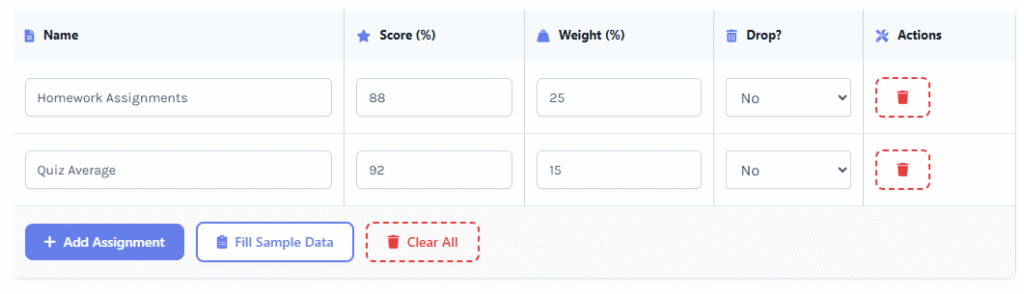
Setting up assignment weights correctly is key to fair and accurate grading. A Canvas grade calculator helps you manage weighted grades at any level. Proper organization reduces confusion, prevents errors, and makes grade projections more reliable. Preview how different weightings affect class averages and student outcomes. Here’s how to apply this effectively:
Break Down Grades into Categories Before the Semester Begins
Start by creating clear assignment groups such as exams, quizzes, homework, and participation. A Canvas grade calculator for high school or a Canvas grade calculator for college students allows you to assign percentages to each group.
Tips to organize effectively:
- Decide category weights according to your syllabus.
- Include optional or bonus assignments if needed.
- Keep total weights equal to 100% for accuracy.
Breaking down grades early prevents last-minute adjustments and ensures your Canvas grading scenarios for instructors reflect the correct distribution.
Clearly Communicate Grading Rules to Students
Transparency avoids confusion and complaints. Share your grading structure using Canvas announcements or your syllabus. With the Canvas grade calculator, students can see exactly how their scores add up, improving their understanding and trust in the grading process.
Ways to communicate clearly:
- Provide a table of weights and categories.
- Explain how dropped or late assignments are handled.
- Show a sample calculation using your calculator.
Clear communication keeps students informed and builds trust.
Use the Calculator to Simulate Grading Schemes and Adjust if needed.
Before finalizing, test different weighting scenarios with your calculator. This tool provides immediate feedback on grade balance and can reveal potential fairness issues that might go unnoticed otherwise. Canvas grading scenarios for instructors help identify whether some categories over-influence final grades.
Test outcomes by entering sample scores.
- Tweak weights to align with class needs.
- Check that no single category skews final grades.
Simulation helps prevent common grading mistakes in Canvas.
Maintain Consistency for Fair Evaluation Across the Class
Consistency is crucial for trust and accuracy. A Canvas class average calculator for teachers helps you instantly compare class-wide results, making it easy to spot and address any inconsistencies in grading across the class.
Best practices:
- Use the same weighting system for all students.
- Keep assignment groups uniform across sections.
- Update the calculator if you make syllabus changes.
Consistent grading ensures fair evaluation and smooth semester management.
Takeaways
- Plan assignment categories before classes start.
- Share grading rules transparently with students.
- Simulate grades using your calculator.
- MainAct now: organize your weighting system, communicate clearly, simulate with your calculator, and keep grading consistent for the best class results.
Monitoring Class Average & Student Progress
Keeping track of student performance is easier with a Canvas grade calculator for teachers. Whether you teach high school or college, this tool helps you see trends, compare scores, and spot potential issues early. Monitoring averages and individual progress ensures fair grading and better student support. You can also simulate scenarios to see how future assignments affect class averages. Here’s how to apply this effectively:
Teachers Can View the Overall Class Average at a Glance
The calculator gives quick access to class averages, eliminating manual score calculations and offering real-time class performance.
Tips for efficiency:
- Check the summary dashboard daily or weekly.
- Use visual charts to identify high- and low-scoring areas.
- Compare averages across assignment categories to spot trends.
Instant access to analytics helps instructors quickly spot trends, make informed grading decisions, and reduce the likelihood of calculation errors compared to manual methods. is critical. The calculator highlights students who consistently score below expectations, helping you intervene before grades drop too far.
How to identify trends:
- Review performance weekly or biweekly using your Canvas grade calculator.
- Highlight students with declining scores.
- Set up alerts for scores below a threshold.
Early intervention allows tailored support, improving student outcomes and preventing common issues. Early intervention, made possible by rapidly identifying trends, enables teachers to offer tailored support. This improves student outcomes and reduces grading errors. a guide to personalized feedback. You can focus on weak topics, suggest study strategies, and encourage improvement.
Steps to use data effectively:
- Compare assignment performance across categories.
- Identify patterns in quiz or exam errors.
- Provide actionable feedback based on trends.
With grading scenarios, you can predict how improvements in certain areas impact final grades.
Track Grade Distributions to Ensure Fairness
Checking grade distribution helps prevent unintended grade inflation or deflation. Reviewing grade distributions with the calculator helps teachers quickly check for unintended grade inflation or deflation. The tool makes it easier to maintain fairness and consistency in grading scores.
- Adjust weights if one category dominates final grades.
- Periodically review averages with your Canvas grade calculator.
Fair evaluation builds trust and transparency in your classroom.
Takeaways
- Monitor class averages in real time.
- Spot struggling students early.
- Use trends to provide targeted feedback.
- Track grade distributions for fairness and consistency.
Accuracy: Canvas vs Other Tools
Accurate grading remains essential for teachers. The Canvas grade calculator for teachers provides reliable calculations for both weighted and unweighted grades. Compared to Excel spreadsheets or manual tracking, Canvas reduces errors and saves time. Additionally, using the calculator ensures consistent results across assignments and students. Here’s how to apply this effectively:
Canvas Grade Calculator for High School
High school grading often includes multiple categories like homework, quizzes, exams, and participation. To address these complexities and ensure fairness, a Canvas grade calculator for high school ensures each category’s weight is applied correctly.
Benefits:
- Accurate computation of current and projected grades.
- Reduces mistakes compared to manual entry.
- Provides clear Canvas grading scenarios for instructors.
Teachers can use this tool to simulate outcomes, helping students understand the scores needed to reach their goals.
Canvas Grade Calculator for College Students
College courses may have more complex grading structures, including labs, group projects, and participation. Building on the accuracy provided for high school contexts, a Canvas grade calculator for college students handles these complexities with ease.
Key advantages:
- Automatically applies weighted categories.
- Prevents common grading mistakes in Canvas.
- Supports calculation of cumulative GPA and final projections.
Comparing the Canvas grade calculator to Excel or manual methods shows Canvas generates fewer errors and offers greater reliability by automating grade computations.
Canvas Class Average Calculator for Teachers
Tracking the overall class average is simpler with a Canvas class average calculator for teachers. Teachers can instantly see trends, identify struggling students, and evaluate class-wide performance.
- Compare averages across different assignment categories.
- Identify areas where students may be underperforming.
- Use collected data to adjust teaching strategies or review challenging topics.
As a result, this saves time and ensures that class averages are fair and transparent, complementing the benefits already discussed for individual grading.
Comparing Canvas Accuracy with Other Tools
Continuing the comparison, Canvas uses built-in logic that automatically calculates weighted grades, drops, and category totals. This approach is more reliable than Excel or manual calculations.
Rely on Canvas to reduce human errors.
- Handles complex grading scenarios with ease.
- Supports “what-if” simulations for better decision-making.
Double-check calculations outside Canvas when importing grades from other platforms.
- Changing assignment weights mid-semester.
- Running large-scale grading scenarios that affect the final GPA.
- Canvas provides higher accuracy than Excel or manual methods.
- It handles high school, college, and complex setups.
- Use class averages and grading simulations to prevent errors.
- Double-check only when importing data or adjusting weights.
Conclusion
This guide explained how the Canvas grade calculator streamlines grading, tracks averages, and prevents errors. We offered tips for weighting assignments, monitoring progress, and using “what-if” scenarios.
This tool delivers accuracy over manual grading or other tools. Whether teaching high school or college, the calculator saves time, reduces errors, and promotes fairness. Real-time insights help support struggling students and plan feedback.
Take control of your grading today—try the Canvas grade calculator for teachers now to simplify class management and boost your efficiency. Experience the difference firsthand, share your results in the comments, and explore our other tools to make grading faster and more accurate.
“Take control of your grading today! Use the Canvas Grade Calculator for Teachers to save time, prevent errors, and keep your class averages accurate. Share your experience or tips in the comments!”

Hi, I’m Zohaib Ali, a BS-IT student at the University of Engineering and Technology. 🎓 I created CanvasGradeCalculator.com to make grade and GPA calculations simple, accurate, and stress-free for students, teachers, and parents. Passionate about tech and education, Helping learners plan smarter, study better.

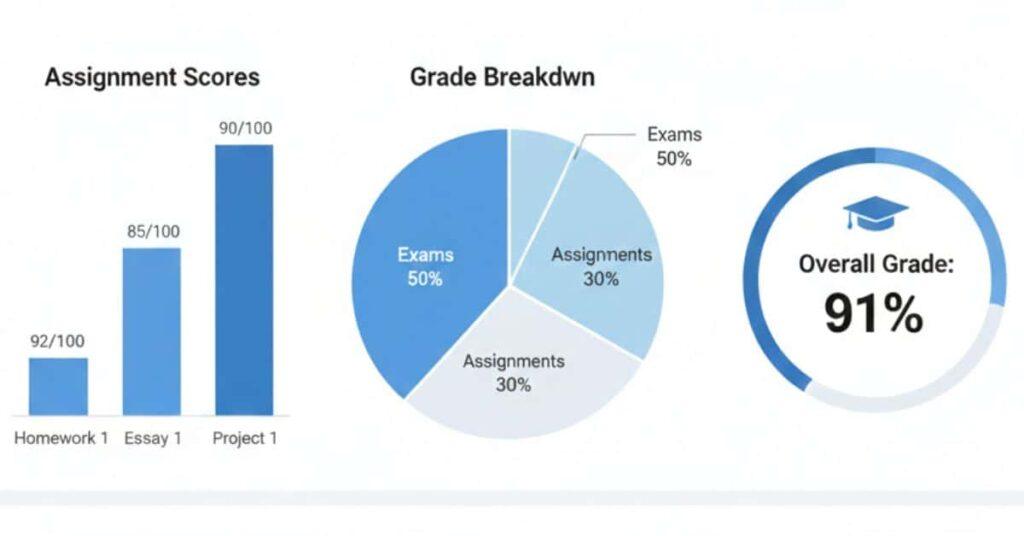
The Canvas Grade Calculator for Teachers helps manage weighted and unweighted grades quickly and accurately. It reduces manual errors, shows class averages and student progress instantly, and allows teachers to run “what-if” scenarios to predict outcomes. This saves time, improves grading transparency, and makes it easier to support students and maintain fair evaluations.
Hi Jeson,
Thank you for your thoughtful summary! I’m glad you found the explanation helpful. The goal of this Canvas Grade Calculator for Teachers is exactly what you mentioned—help educators manage weighted grades, reduce manual errors, and quickly explore “what-if” grading scenarios.
If you ever have specific grading situations or features you’d like to see added, feel free to share. Your feedback helps improve the calculator for teachers and instructors using Canvas.
Appreciate you taking the time to comment!