Introduction
Ever opened your course and wondered why your total grade suddenly disappeared?
Many students feel stressed when the “Canvas grade calculation disabled” appears inside Canvas LMS. You finish assignments, but the system stops showing your percentage. No totals. No progress. Just confusion.
This often happens when a Canvas instructor disables the calculation of grades or turns off automatic settings. Sometimes grades stay hidden during updates or while teachers review scores. But your performance still matters, and deadlines don’t wait.
The good news? You don’t need the system to calculate everything for you. You can track your results with simple math and a few easy steps. It takes only minutes and gives you full control.
In this guide, you’ll learn how to calculate your grade in Canvas when it’s locked, use manual formulas, and predict final scores. We’ll walk through clear examples, tables, and beginner-friendly tips. By the end, you’ll always know where you stand—no guessing, no surprises.
You’ve done the work. Now let’s make sure you can see your real grade.
👉 If you prefer instant results without manual math, you can use our Canvas Grade Calculator to calculate your percentage automatically in seconds.
Why Canvas Grade Calculation Gets Disabled
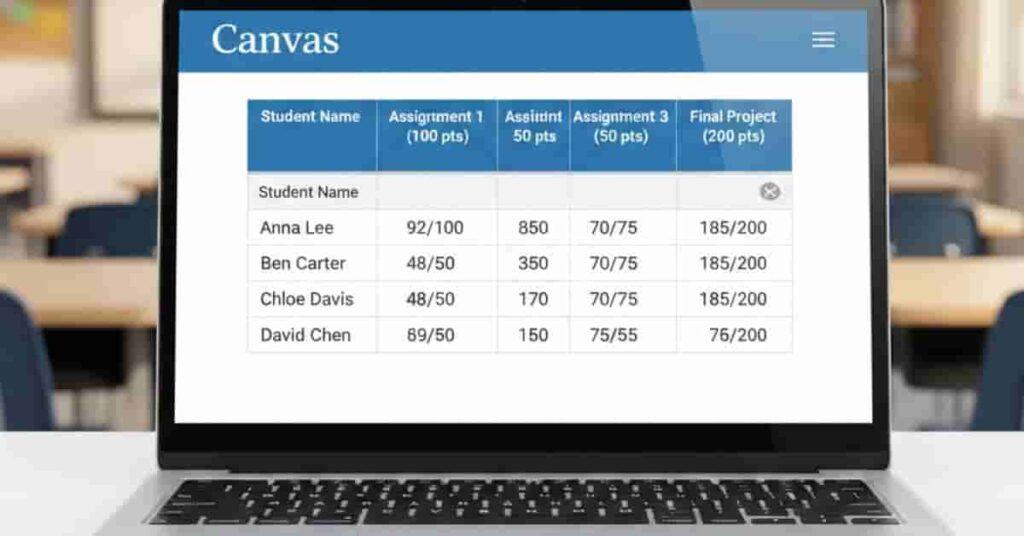
When your total score suddenly disappears, it feels confusing and stressful. You check your grades, but the percentage is gone. It looks like something is broken. In most cases, nothing is wrong with your account. The issue usually comes from settings inside Canvas LMS. When the ” canvas grade calculation disabled appears, it simply means automatic totals are turned off.
Here are the most common reasons this happens:
- Instructor locks grades while reviewing or correcting scores.
- Automatic calculation is paused during grading periods.
- Assignments are hidden until everyone submits.
- System updates or sync delays affect the gradebook
- Manual grading policies replace instant calculations.
Teachers often hide totals to prevent confusion or early comparisons. They may want to release all grades at once. This keeps the class fair. Still, it can make students feel unsure. You can’t see your progress clearly. You don’t know if you’re passing or need improvement. That’s why learning manual grade tracking matters. Even if totals are locked, your scores are still there. You need to calculate them yourself. Once you understand the cause, you stay calm and in control. Next, we’ll walk through simple steps to calculate your grades manually.
Quick Takeaways
- Disabled totals don’t mean lost grades.
- Instructors often lock grades temporarily.
- Manual tracking keeps you informed.
- Simple math solves the problem.
Pro Tip
Keep a small spreadsheet from day one.
Add each score weekly.
You’ll never depend on automatic totals again.
Following step-by-step instructions from the Canvas grade guide ensures you don’t miss any assignments while tracking points manually.
How to Manually Calculate Your Grades in Canvas
When the Canvas grade calculation is disabled, you don’t lose your grades. You only lose the automatic total. All your scores still exist inside Canvas LMS, and you can calculate them yourself with simple math. Manual calculation may sound hard, but it’s actually very easy. You collect your points, add them, and convert the result into a percentage. This method works for every course, even when instructors lock totals or pause automatic grading.
Start by opening your course gradebook and writing down every graded assignment. Include quizzes, homework, projects, and tests. Note both the points you earned and the total possible points for each task.
Next, add all your earned points together. Then add all possible points. Divide the earned by the total and multiply by 100. This gives your current percentage. After that, compare your result with the course grading scale. Most classes follow a simple A–F system. If your course uses weighted categories, calculate each category separately and then combine them.
This step-by-step approach keeps you informed and confident. You always know where you stand, even without automatic totals.
This method works for every course, even when instructors lock totals or pause automatic grading. If you want faster results without doing the math manually, try our Canvas Grade Calculator to instantly calculate your percentage and totals automatically.
Step 1: Collect All Graded Assignments and Points
Begin by gathering every score shown in your gradebook. Open each assignment and note two numbers: the points you earned and the maximum points available. Write them in a notebook or spreadsheet.
Stay organized and list items clearly. For example, add columns for assignment name, earned points, and total points. This helps you avoid missing anything.
Here’s a simple example:
| Assignment | Earned | Total |
|---|---|---|
| Quiz 1 | 8 | 10 |
| Homework | 18 | 20 |
| Project | 45 | 50 |
Seeing everything in one place makes the next steps faster and more accurate.
Step 2: Add Earned Points and Total Possible Points
Now calculate two totals. First, add all earned points together. Then add all possible points.
Using the table above, your earned points equal 71, and your total possible points equal 80.
These two numbers show your real progress. You don’t need any special tools. A basic calculator or phone works fine. This step gives you the raw data needed for your percentage.
Step 3: Convert to Percentage Using the Formula
Once you have totals, use a simple formula:
(Earned ÷ Total) × 100
| Step | Calculation | Result |
|---|---|---|
| Divide | 71 ÷ 80 | 0.8875 |
| Multiply | 0.8875 × 100 | 88.75% |
That means your current grade is about 89%.
This number is easier to understand than points alone. Most instructors also use percentages to assign letter grades.
Step 4: Compare with the Grading Scale
Next, match your percentage to your course grading scale. Check your syllabus for exact cutoffs.
| Percentage Range | Letter Grade |
|---|---|
| 90–100% | A |
| 80–89% | B |
| 70–79% | C |
If your score is 88.75%, you’re in the B range. Now you clearly know your standing without waiting for automatic calculations. This step removes guesswork and helps you set goals for improvement.
Step 5: Use Weighted Grades If Your Course Has Categories
Some courses use weighted grading instead of simple totals. For example, exams might count more than homework.
In this case, calculate each category separately. Find the percentage for homework, quizzes, and exams, then multiply each by its weight.
Example:
| Category | Score | Weight | Weighted Result |
|---|---|---|---|
| Homework | 90% | 40% | 36 |
| Exams | 80% | 60% | 48 |
| Total | 84% | ||
Add them: 36 + 48 = 84% final grade.
Weighted grading gives a more accurate result when categories matter differently.
Takeaways
Manual grade tracking is simple and reliable. Add points, calculate percentages, and compare with your scale. You stay informed even when totals are locked. A small spreadsheet can save a lot of stress.
Pro Tips
Update your grades after every assignment. Use Google Sheets or Excel for quick math. Double-check weights in your syllabus. Consider linking to your online grade calculator for faster predictions.
For a detailed walkthrough of checking individual assignment scores, see our step-by-step guide on how to check grades on Canvas.
Using What-If Scenarios When Automatic Calculation is Disabled
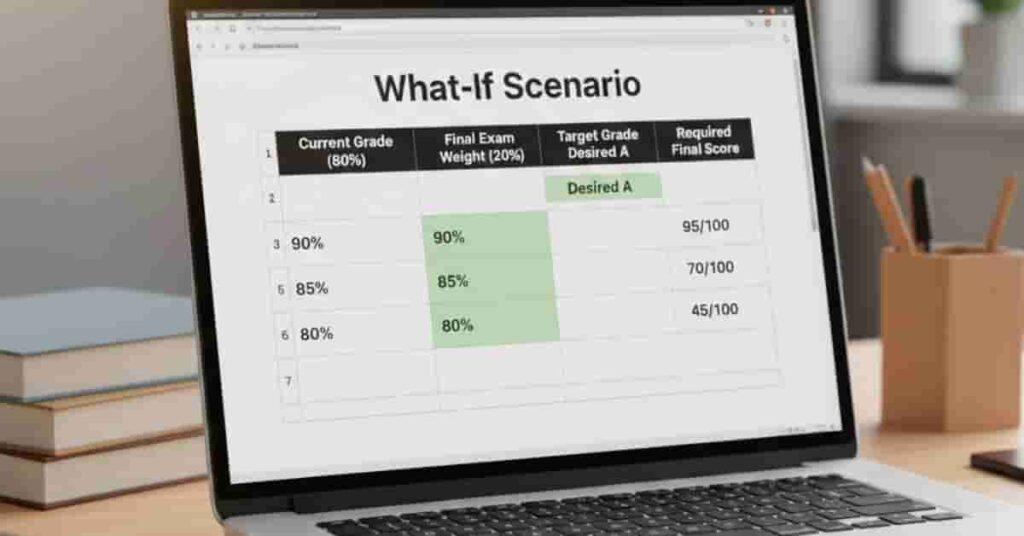
Even when the canvas grade calculation is disabled and keeps totals hidden, you can still predict your future grades using simple what-if scenarios.
These scenarios help you answer questions like: “What grade do I need on the final exam to earn an A?” or “Can I still reach my target grade if I miss one assignment?”
It’s a powerful method for planning and reducing stress, especially when you’re tracking multiple assignments and weighted categories.
The first step is to gather your current points and totals, just like in manual calculations.
Next, determine the weight of the upcoming assignment or final exam.
Most courses have these weights listed in the syllabus or the gradebook.
Once you know this, use the formula:
| Formula |
|---|
| Required Score = (Target Grade − Current Grade × (1 − Exam Weight)) ÷ Exam Weight |
| Term | Meaning |
|---|---|
| Target Grade | The final grade you want to achieve |
| Current Grade | Your grade before the final exam |
| Exam Weight | How much the exam counts toward your final grade |
| Required Score | The score you must get on the exam |
For example, imagine you have an 85% current grade, and the final exam counts for 30% of your total grade.
To earn a 90% in the course:
| Step | Calculation | Result |
|---|---|---|
| Multiply current × remaining weight | 0.85 × 0.70 | 0.595 |
| Subtract from target | 0.90 − 0.595 | 0.305 |
| Divide by exam weight | 0.305 ÷ 0.30 | ≈ 1.02 |
| Required Final Score | 102% |
This means you’d need slightly more than full marks on the final to reach an A.
Seeing this clearly helps you adjust study plans and focus on achievable goals.
Pro Tip:
Always recalculate what-if scenarios after each new score.
This keeps predictions accurate and helps prioritize assignments strategically.
Handling Bonus and Extra Credit Points
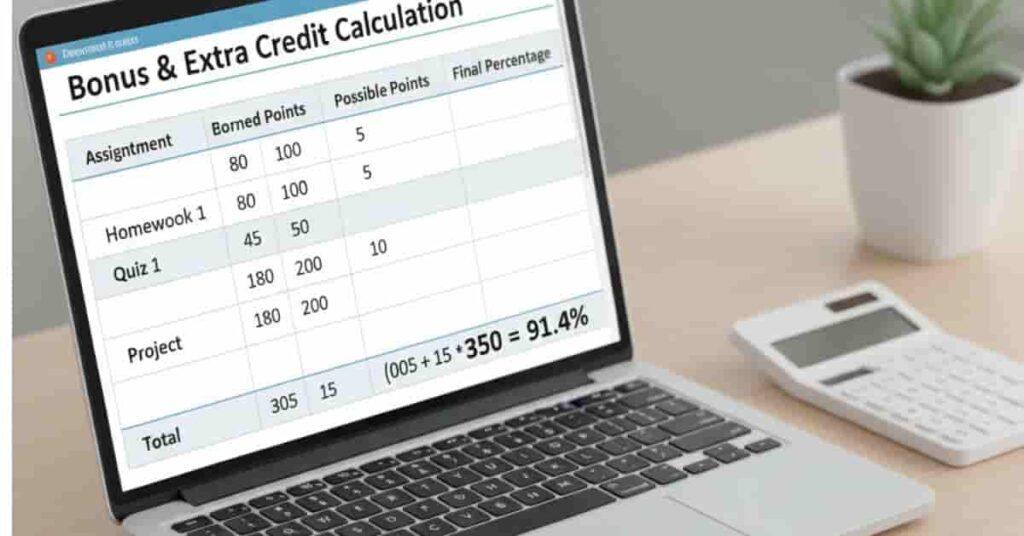
Bonus and extra credit points can significantly improve your final grade, but when the Canvas grade calculation disabled is disabled, you need to handle them manually. Even though Canvas may hide the automatic totals, you can still include bonus points in your calculations to see their real impact.
Start by collecting all your regular assignment scores and totals, just like in standard manual calculations. Then, note any bonus or extra credit points separately. Unlike regular points, bonus points are usually added on top of your earned points without changing the total possible points for the assignment.
For example, imagine your current points total 180 out of 200. You earned 10 bonus points from extra credit assignments. Add these points to your earned total: 180 + 10 = 190. Then calculate your percentage:
| Step | Calculation | Result |
|---|---|---|
| Add earned points and bonus | 190 ÷ 200 | 0.95 |
| Multiply by 100 | 0.95 × 100 | 95% |
This shows how bonus points push your grade higher, even if the main grade calculation is disabled. Keeping a clear table for earned points, total points, and bonus points makes this process simple and avoids confusion.
Pro Tip: Track all bonus opportunities separately and update your manual grade tracker immediately after submission.
This ensures your predicted grade reflects every possible point you’ve earned.
Weighted vs Unweighted Grades
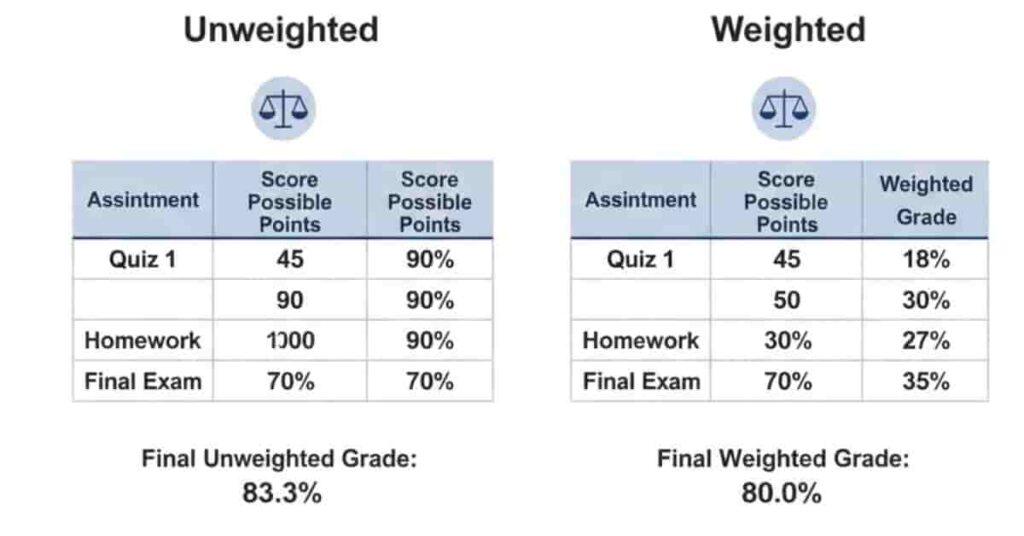
Understanding the difference between weighted and unweighted grades is essential, especially when the Canvas grade calculation is disabled and hides automatic totals. These two systems calculate your final grade differently, and knowing which one your course uses helps you track progress accurately.
Unweighted grades are simple averages. Every assignment counts equally, regardless of type or importance.
For example, if you have three assignments scored 90, 80, and 70 out of 100, the unweighted average is:
(90 + 80 + 70) ÷ 3 = 240 ÷ 3 = 80%
Here, each assignment contributes the same to your final grade.
Weighted grades, on the other hand, assign different importance to each category or assignment type.
For instance, a course may weigh exams at 50%, homework at 30%, and quizzes at 20%.
To calculate manually, first find the percentage earned in each category, then multiply by its weight:
- Homework: 85% × 30% = 25.5
- Quizzes: 90% × 20% = 18
- Exams: 80% × 50% = 40
Final weighted grade = 25.5 + 18 + 40 = 83.5%
This method reflects the true impact of more important assignments on your overall grade.
Pro Tip: Always check your syllabus or gradebook to confirm whether your course uses weighted categories. If it does, track each category separately in your manual grade tracker to get the most accurate prediction of your final grade.
If your course allows dropping the lowest grade, check out our guide on how to drop lowest grade in Canvas to adjust your manual grade calculations.
Tips to Track Your Grades Efficiently Without Canvas Calculation
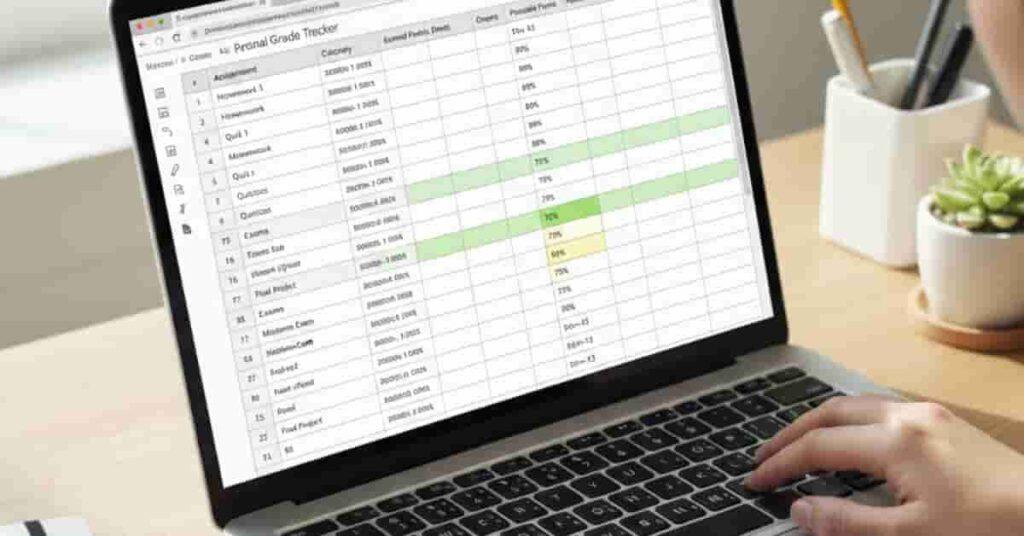
When the canvas grade calculation is disabled, preventing automatic totals, staying on top of your grades requires organization and consistency. One of the most effective strategies is maintaining a personal grade tracker. A simple spreadsheet in Google Sheets or Excel works perfectly. Create columns for each assignment, including earned points, total points, bonus points, and calculated percentages. This allows you to see your current standing at a glance, even when Canvas hides totals.
Updating your tracker regularly is key. After every assignment is graded, immediately record your points. This ensures your calculations are always current and reduces surprises before exams or project deadlines. You can also include formulas to calculate percentages or weighted scores automatically. Over time, this habit makes tracking effortless and accurate.
Another tip is to stay informed about instructor announcements.
Sometimes instructors lock grades temporarily for corrections or class-wide updates.
Knowing when this happens helps you avoid confusion and prevents double-checking errors. You can even note these dates in your spreadsheet to keep everything synchronized.
Finally, consider combining your manual tracker with a what-if scenario sheet to plan for future grades. This proactive approach gives you full control and helps you focus on improving scores strategically.
Pro Tip: Color-code assignments or highlight categories (homework, quizzes, exams) to see which areas affect your grade most quickly.
Conclusion
In this guide, we covered why canvas grade calculation disabled happens and how to track your grades manually.
You learned step-by-step methods for calculating percentages, handling weighted grades, bonus points, and predicting future scores with what-if scenarios.
Manual tracking ensures you always know where you stand, even when Canvas hides automatic totals.
While the Canvas grade calculator is helpful when enabled, these hands-on strategies keep you prepared and in control of your academic progress.
Start using a personal spreadsheet, update it regularly, and plan for upcoming assignments.
By staying proactive, you avoid surprises and confidently manage your grades.
Share your manual tracking tips in the comments, try our Canvas Grade Calculator to instantly check your current percentage, or use the Canvas GPA Calculator to estimate your semester GPA and overall performance.

Hi, I’m Zohaib Ali, a BS-IT student at the University of Engineering and Technology. 🎓 I created CanvasGradeCalculator.com to make grade and GPA calculations simple, accurate, and stress-free for students, teachers, and parents. Passionate about tech and education, Helping learners plan smarter, study better.