
Canvas GPA Calculator 2026 – Calculate Your GPA Easily & Accurately

Instantly calculate your GPA on Canvas! Enter your course grades, choose your GPA scale, and see both cumulative and per-course results in seconds. Plan your grades with the What-If simulation and track progress anytime, on desktop or mobile.

• 🔐 Data-Safe • 🛡️ No Extensions Needed • 🚫 No Tracking  • ✔️ Fast & Accurate • ❤️ Student-Trusted

🚀 Feature Highlights

📚 Per-Course & Cumulative GPA | Calculates GPA for each class and your overall GPA instantly. | Know exactly how every course affects your final GPA.
🔢 Multiple GPA Scales | Supports 4.0, 4.33, 5.0, and custom GPA scales. | Matches your school’s grading system perfectly.
🔍 What-If Grade Simulation | Lets you test future or target grades before submitting assignments. | Plan smarter and avoid GPA surprises.
🎯 Accurate Canvas-Based Logic | Uses credit hours and Canvas grading rules for calculations. | Get reliable results you can trust.

Calculate your GPA from Canvas percentages

➕ Add Course

Letter Grade --
GPA --

📋 Your Courses

Course % Letter GPA Credits Include Actions

No courses added yet. Add your first course above!

📊 Cumulative Results

📈
0.00 Cumulative GPA
📚
0 Total Credits
📝
0 Total Courses
0.00

💡 What-If Simulation

See how a hypothetical score would affect your GPA

New Letter Grade --
New GPA --
New Cumulative GPA --
GPA Change --


Looking to calculate your current or final course grades in Canvas?
Try our Canvas Grade Calculator to see your assignment scores, final exam impact, and overall course performance in seconds.
Using both tools together helps you plan grades more accurately and avoid surprises.

How to Use Canvas GPA Calculator (Step-by-Step Guide)

Calculating your GPA on Canvas doesn’t have to be hard. Canvas shows grades as percentages, but GPA depends on letter grades and credit hours. Our Canvas GPA Calculator makes it simple to see your per-course and cumulative GPA accurately.
Follow these simple steps to calculate your GPA correctly and confidently.

Step 1: Add Your Course Details
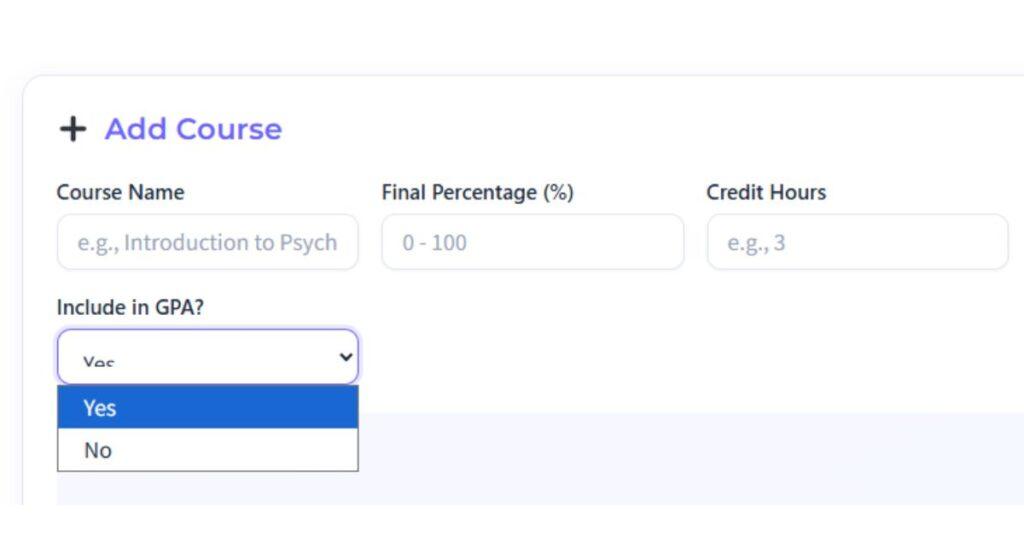
Add course name, percentage, and credit hours in Canvas GPA Calculator

You can start by entering each course individually.
    • Enter the course name.
    • Add your final percentage (0–100%) from Canvas.
    • Enter the correct credit hours.

Why this matters: Courses with more credit hours have a bigger impact on your GPA, so accuracy here is important.

Step 2: Select the Correct GPA Scale
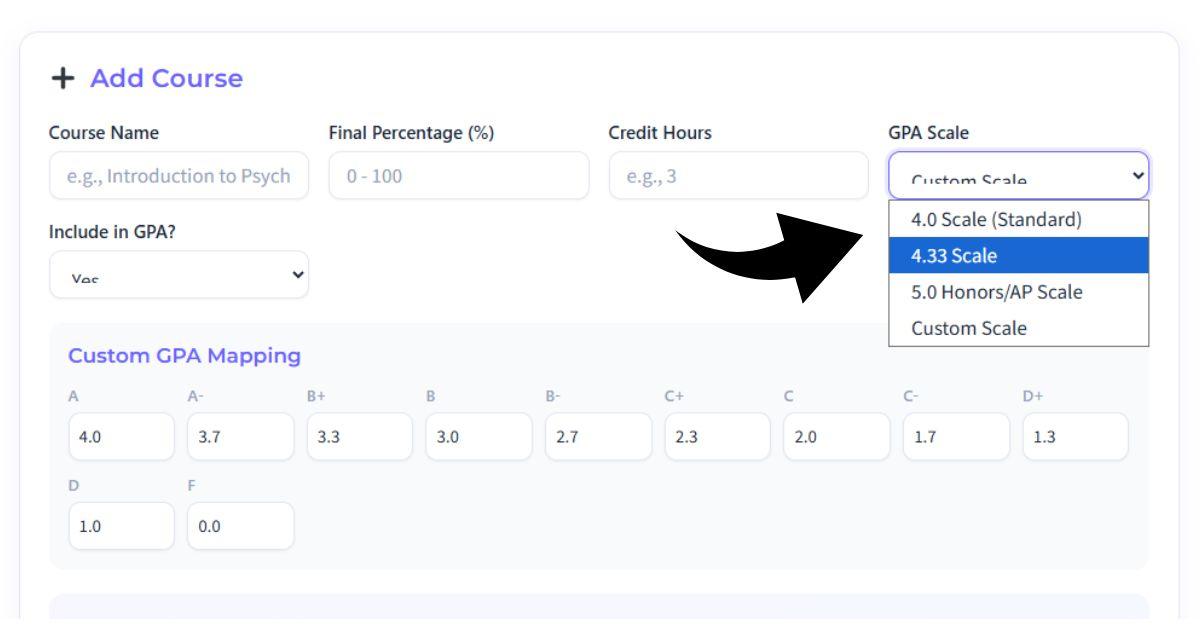
Select GPA scale in Canvas GPA Calculator

Choose the GPA scale used by your school:

  • 4.0 scale (standard)

  • 4.33 scale

  • 5.0 scale (Honors / AP)

  • Custom GPA scale

Tip: If your school uses weighted grading for Honors or AP classes, make sure you select the matching scale.

Step 3: Choose Whether to Include the Course
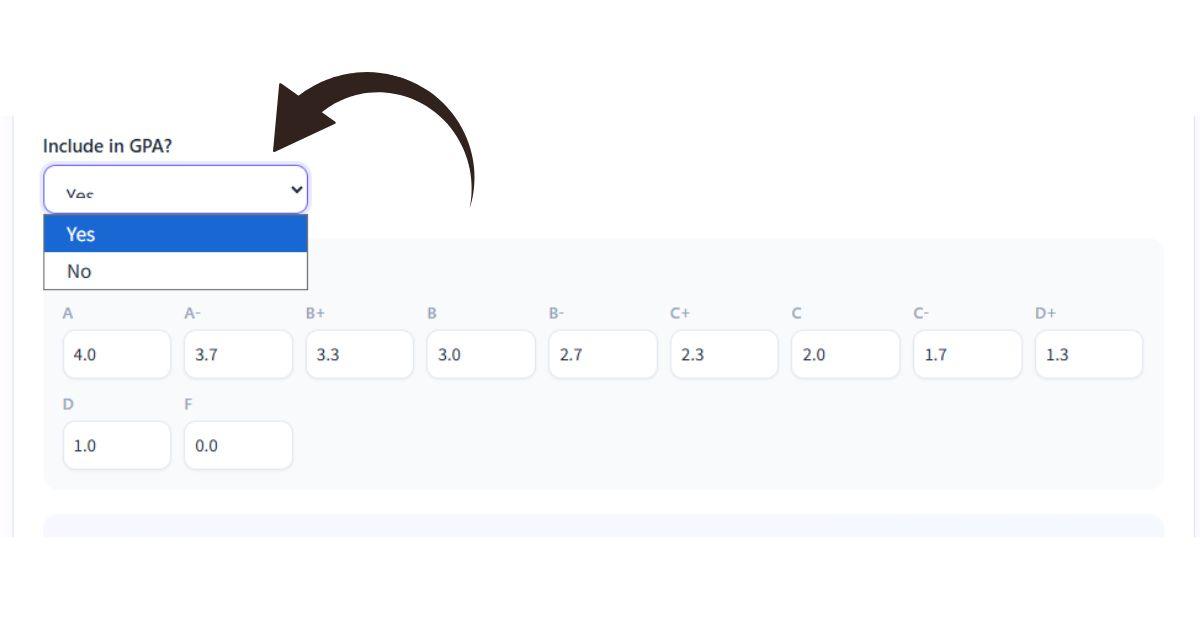
Include or exclude courses in GPA calculation

Decide if a course should be counted in your GPA.

  • Include graded courses

  • Exclude pass/fail, withdrawn, or non-GPA courses

This gives you full control and keeps your GPA calculation accurate.

Step 4: Review Letter Grades and GPA Results
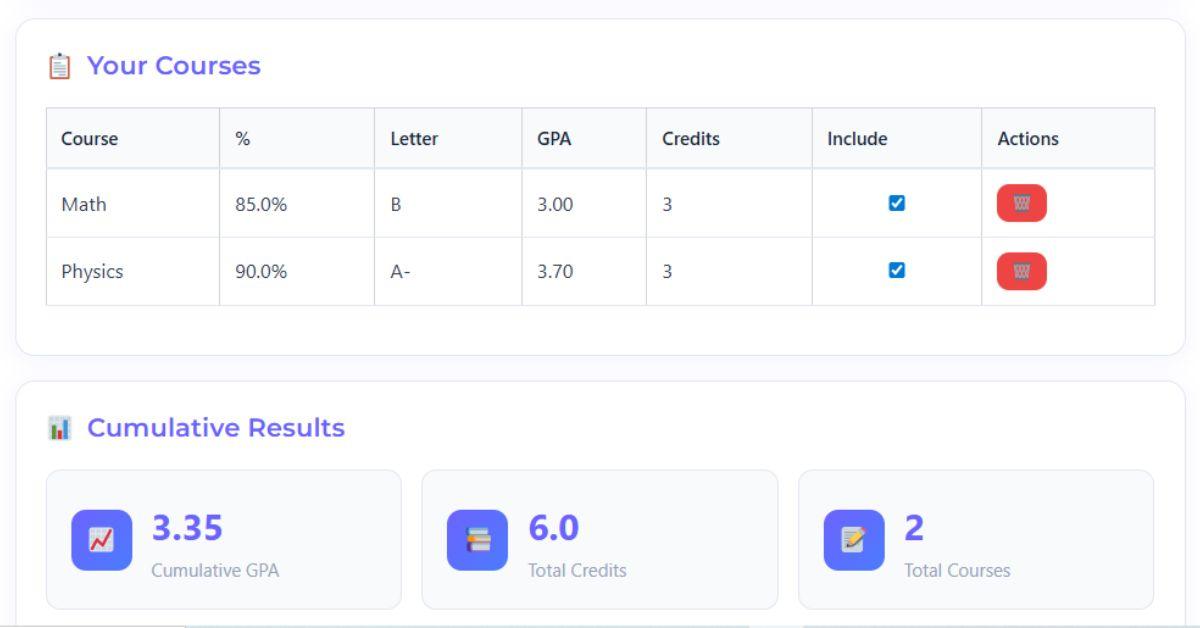
View cumulative GPA and course GPA results

Once added, the calculator instantly shows:

  • Letter grade for each course

  • Per-course GPA

  • Total credits

  • Cumulative GPA

Canvas percentages are automatically converted into GPA-ready results — no manual math required.

Step 5: Choose Which Courses Count Toward Your GPA
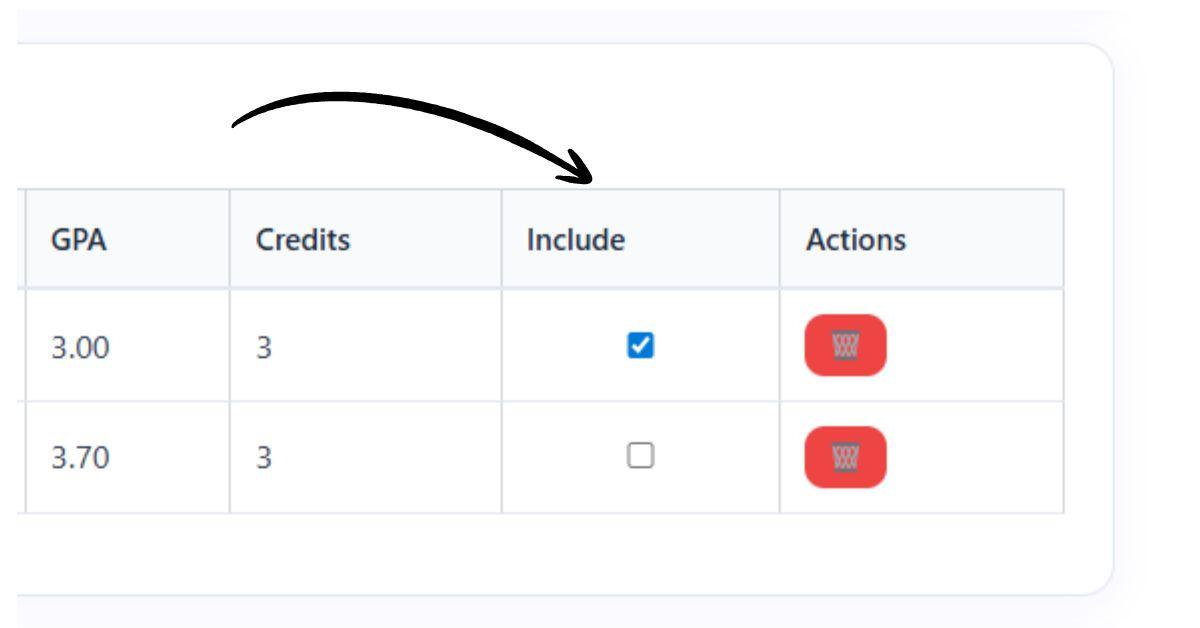
Canvas GPA calculator showing included and excluded courses using checkbox options

Each course includes an “Include in GPA” checkbox (✔ / ⬜) that lets you control whether a class affects your cumulative GPA.

  • Checked → The course is included in your cumulative GPA

  • Unchecked → The course is excluded from GPA calculation

Your cumulative GPA updates instantly when you toggle this option.

When Should You Exclude a Course?

This option is especially useful if:

  • The course is pass/fail

  • You are retaking a class

  • The course does not count toward your major GPA

  • You want to calculate a major-only or term-only GPA

This flexibility helps students get a more accurate and realistic GPA, just like official Canvas and school reports.

Step 6: Track Progress During the Semester
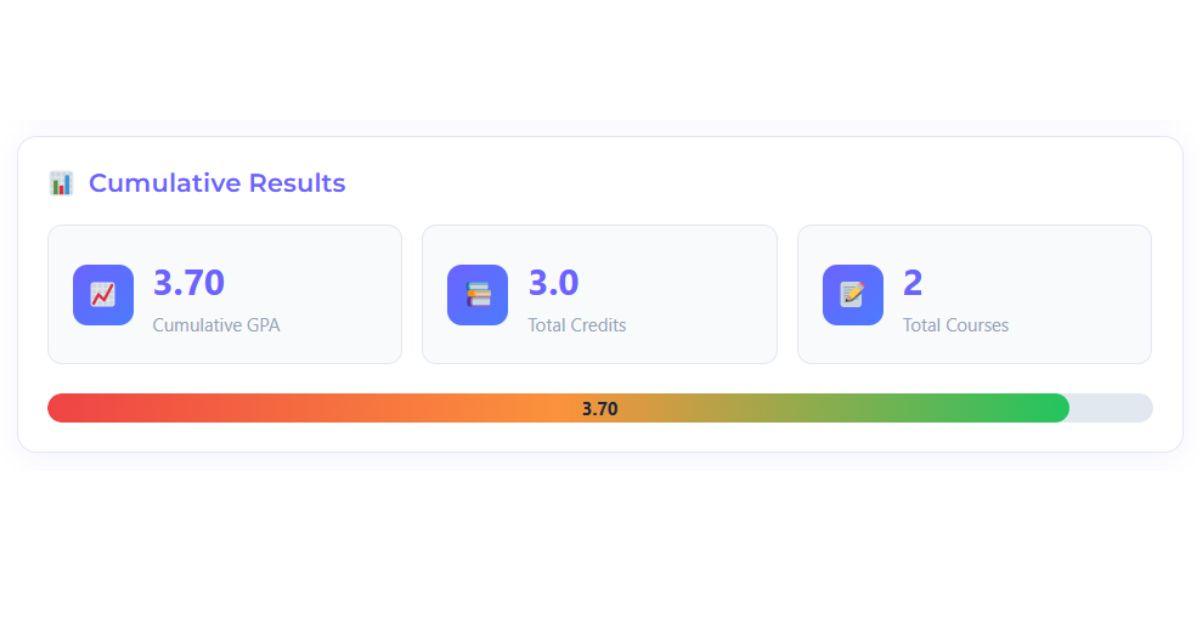
Track GPA progress during the semester using Canvas GPA Calculator

Don’t wait for final grades. Update percentages as the semester continues to see where you stand and adjust your effort early.

This helps avoid surprises and reduces end-of-term stress.

Step 7: Use the What-If GPA Simulation
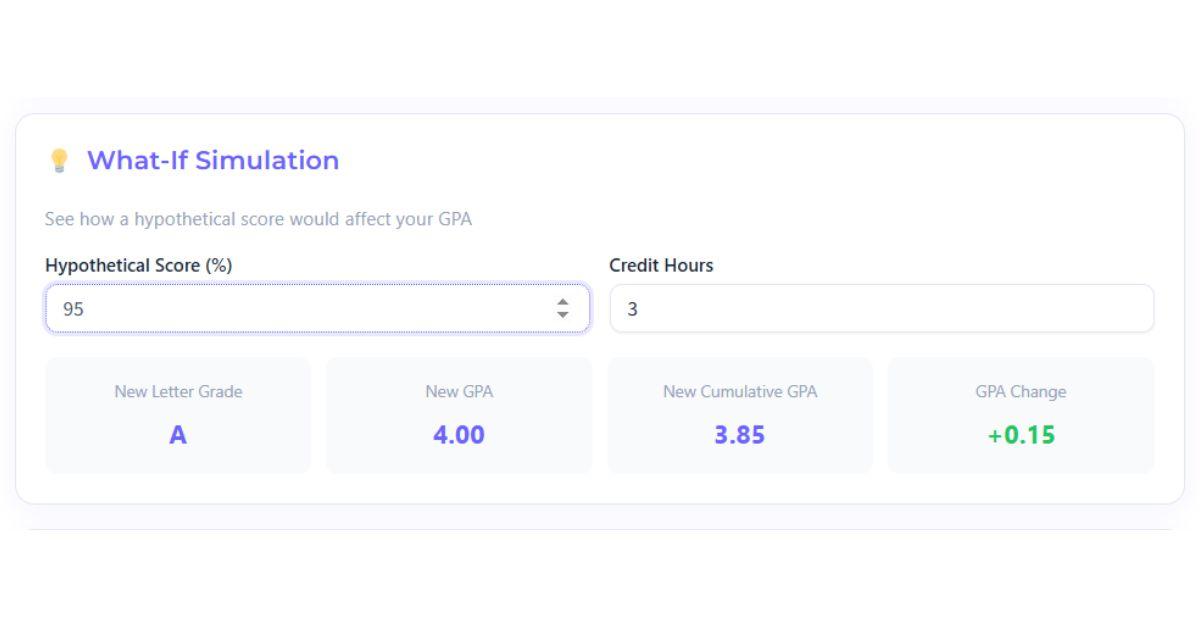
What-If GPA simulation for Canvas students

Planning ahead? Enter a hypothetical score and credit hours to see:

  • New letter grade

  • Updated course GPA

  • New cumulative GPA

  • GPA increase or decrease

Perfect for assignment planning, exam preparation, and GPA goal setting.

Step 8: Get Personalized GPA Improvement Insights
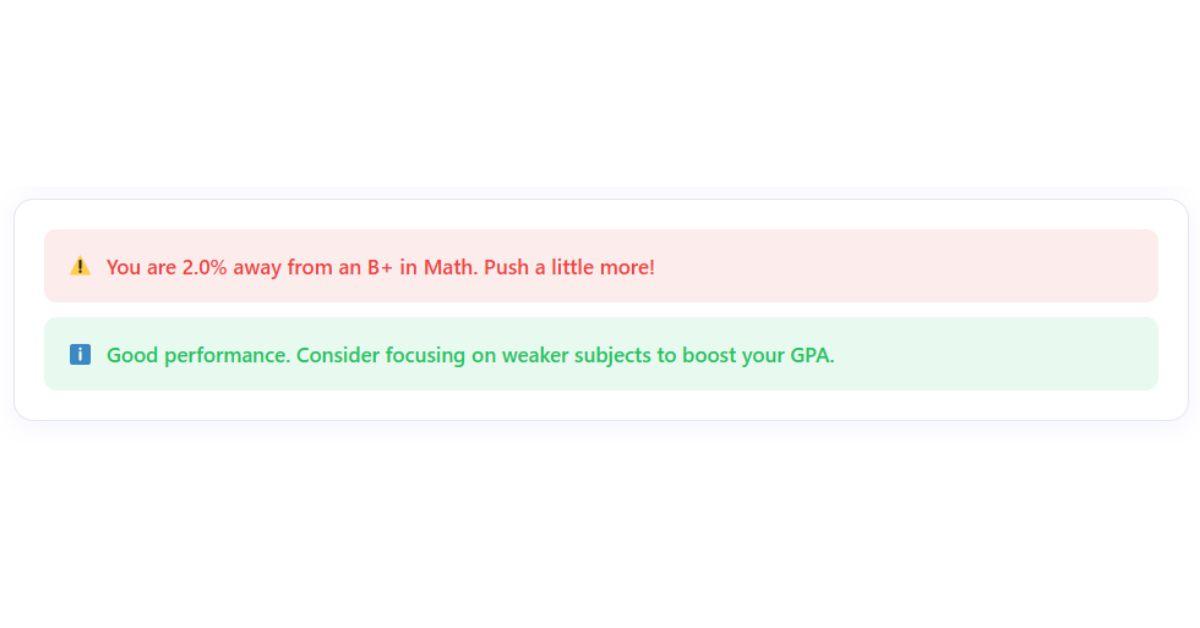
What-if GPA simulation with personalized performance insights for Canvas students

After running the What-If Simulation, the calculator automatically generates smart improvement suggestions to help you understand how close you are to the next grade and where to focus your effort.

What You’ll See:

⚠️ Grade Gap Alerts
“You are 2.0% away from a B+ in Math. Push a little more!”

ℹ️ Performance Insights
“Good performance. Consider focusing on weaker subjects to boost your GPA.”

These insights help students:

  • Identify near-miss grade boundaries

  • Focus effort where it can create the biggest GPA improvement

  • Stay motivated with clear, actionable academic guidance

  • Make smarter decisions before final grades are locked

    Step 9: Save, Export, or Print Your Results. When you’re done:
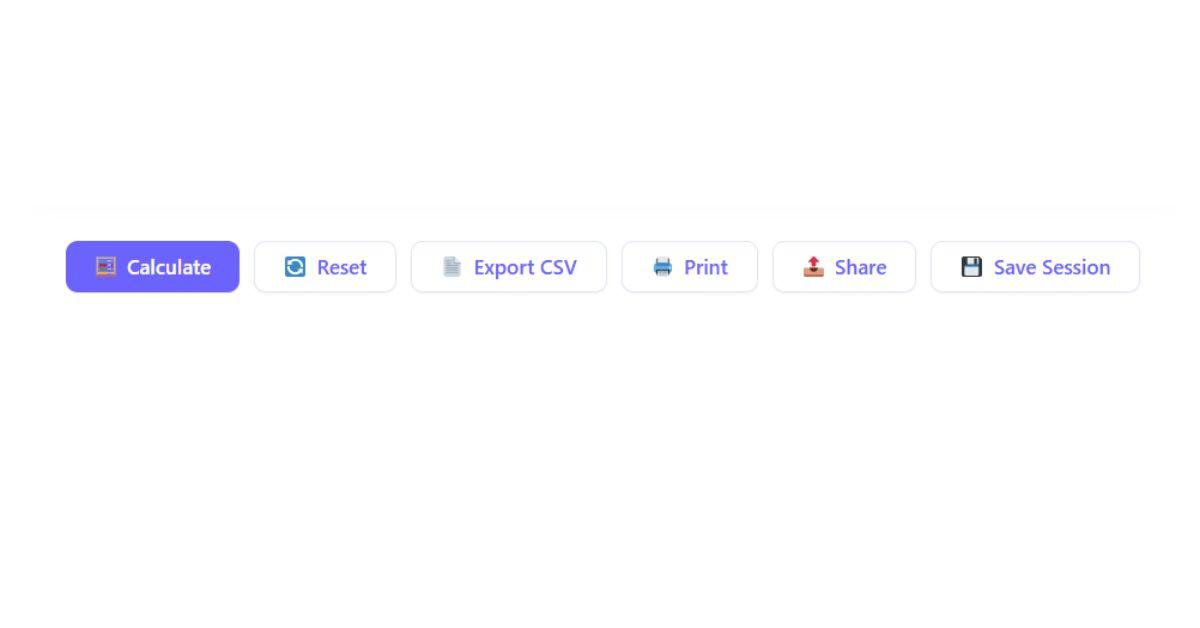
    Export, print, or save GPA results from Canvas GPA Calculator

    No account required. Your data stays private and on your device.


    • No sign-up required

    • No data is stored on servers

    • Calculations happen in your browser

    • Built specifically for Canvas LMS students in the U.S.


    🎯 Final Tip for Students

    Check your GPA regularly, not just at the end of the semester. Small improvements early can make a big difference in your final GPA.

📊 Real Use Cases: How Students Actually Use Our GPA Calculator

Our GPA Calculator isn’t just a tool — it’s part of students’ everyday academic planning. Here’s how real users benefit from it:

🎓 1. High School Students Checking College Eligibility

Students use the calculator to see if their GPA meets admission requirements for competitive U.S. colleges and universities.

📝 2. Planning Next Semester’s Grades

Many students calculate what GPA they need next semester to hit honor roll, dean’s list, or scholarship targets.

🎒 3. Tracking Class Performance Mid-Semester

Instead of waiting until final grades, students check their GPA weekly to stay on track and avoid surprises.

🧮 4. Converting Weighted & Unweighted GPA

AP, Honors, IB, or dual-enrollment students use it to quickly convert between weighted and unweighted GPAs.

💼 5. Preparing for Scholarship Applications

Since most scholarships require a minimum GPA, students use the tool to confirm eligibility before applying.

🔁 6. Transferring to Another School or College

Transfer students calculate their current GPA to see where they stand and how their credits might convert.

🎯 7. Setting Academic Goals

Whether aiming for a 3.0, 3.5, or 4.0 GPA, students use the calculator to build clear, achievable academic plans.

📌Canvas GPA Calculator FAQs – Common Questions & Answers

Can you calculate GPA on Canvas?

 Yes! Use the Canvas GPA Calculator to accurately calculate your GPA by entering your course grades and credit hours, no Chrome extensions needed.

You can view your GPA using the Canvas GPA Calculator, which displays cumulative and per-course GPA in real-time

Yes, on a standard 4.0 scale, 70–79% corresponds to a C, which equals a 2.0 GPA.

No, 85% typically falls in the B range, equal to a 3.0 GPA on a 4.0 scale. Adjustments can be made in Canvas grading settings if needed.

Open the Canvas GPA Calculator on your mobile browser and enter your courses, percentages, and credit hours for instant results.

 GPA may not display if course grades aren’t finalized or dashboard settings hide GPA; use the Canvas GPA Calculator to calculate manually.

 Not always. Canvas shows percentages and grades, but for accurate GPA calculations, the Canvas GPA Calculator is recommended.

 Add all your course grades with credit hours in the Canvas GPA Calculator it automatically computes the weighted cumulative GPA.

Yes! Enter hypothetical grades in the Canvas GPA Calculator to see how future scores affect your cumulative GPA

 Use the GPA widget in the Canvas GPA Calculator or follow our guide to integrate it for real-time GPA updates.

 Absolutely! It supports all GPA scales (4.0, 4.33, 5.0, custom) and weighted credits for precise results.

 Yes, the Canvas GPA Calculator allows you to export, print, or save sessions for easy tracking.

 Per-course GPA shows individual class performance, while cumulative GPA averages all courses; the Canvas GPA Calculator displays both.

Scroll to Top