Table of Contents
Introduction
Ever looked at your Canvas grades and wondered, “There’s no way I can figure out what I need on the final”? You’re not alone. Many students in the USA feel stuck when Canvas doesn’t show the exact score required to reach a certain final grade. That’s why a canvas final exam grade calculator is so useful, especially when deadlines are close and every point matters.
Canvas often shows your current grade, but it rarely tells you the full story. Hidden categories, weighted scores, and missing assignments can make your final exam impact hard to predict. Students end up searching “canvas what do I need on final” or trying to calculate final grade in Canvas on their own—and the results are often confusing.
This guide solves that problem. You’ll learn how to predict your final grade with confidence, avoid common mistakes, and use simple steps to understand exactly what you need to score on the final exam. With clear examples, practical tips, and easy explanations, this post will help you take control of your grade and plan smarter.
How to Calculate Needed Scores on Final Exams
Many students want to know, “Canvas, what do I need on the final?” but Canvas doesn’t always show a clear number. A canvas final exam grade calculator solves this by using your current grade, assignment weights, and final exam weight to show the exact score you need. It removes guesswork and gives you a realistic path toward your target grade. Here’s how to use it correctly:
Use Your Current Grade and Course Weights
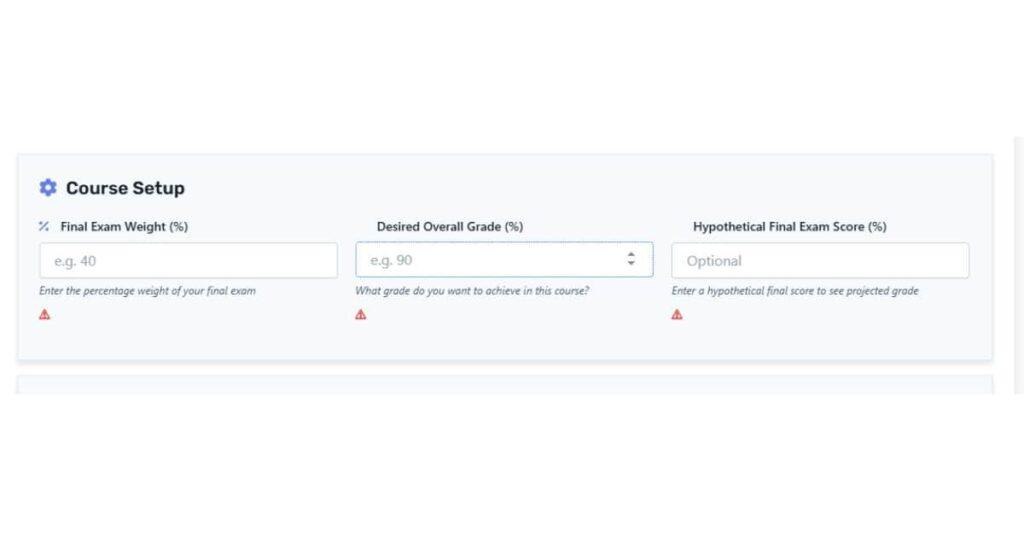
To calculate the final grade in Canvas or any weighted course, start with three values:
- Current grade (before the final)
- Final exam weight (%)
- Desired overall grade (%)
Your calculator already collects these fields for you.
Just enter each value, and the tool does the math using a precise formula.
The formula your calculator uses:
| Formula | Explanation |
|---|---|
|
Needed Final Exam Score = (Desired Grade – (Current Grade × (1 – Final Weight))) ÷ Final Weight |
Calculates the minimum score you need on the final exam to reach your desired course grade. |
This helps you understand precisely how much effort your final exam requires.
Enter Hypothetical Final Scores (Optional)
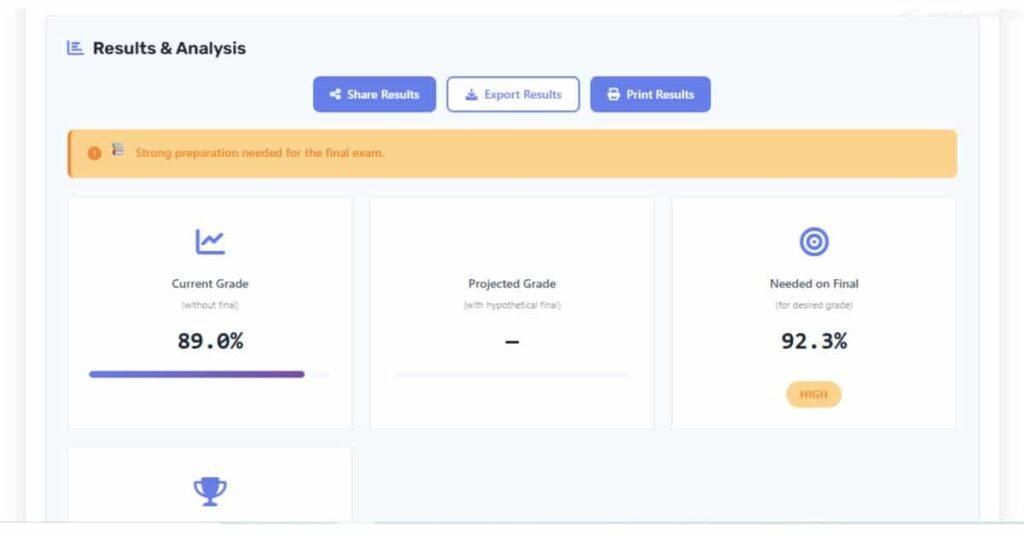
Your calculator also includes a What-If section. Students often use this when Canvas doesn’t show projected outcomes.
You can:
- Add a hypothetical final exam score
- Instantly view your projected overall grade
- Test best-case and worst-case outcomes
- Compare multiple scenarios without reloading the page
This makes your calculator more accurate than Canvas for planning a final exam strategy.
Check Assignment Weights Before Calculating
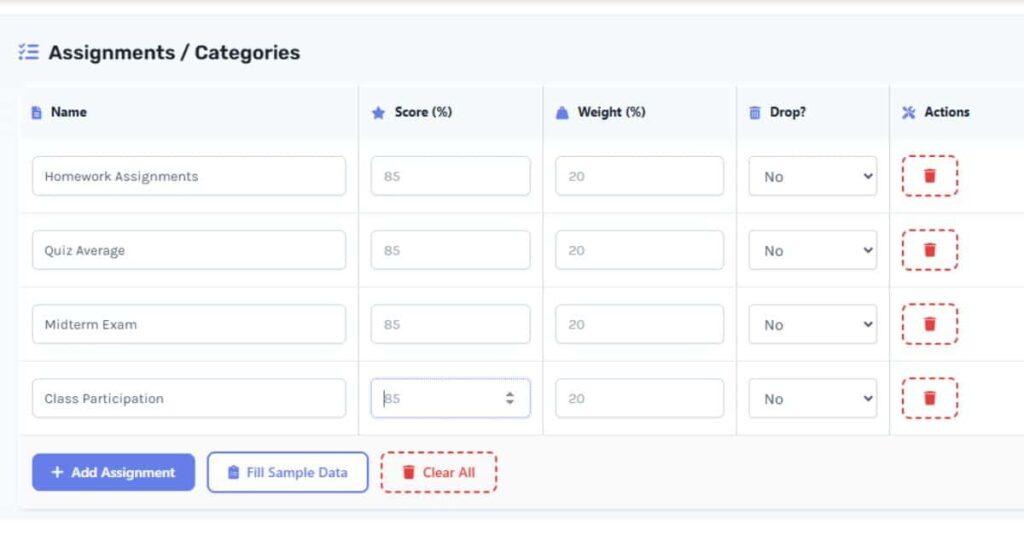
Correct predictions rely on the proper weight setup.
Your calculator confirms this automatically by showing:
- Assignments weight = 70%
- Final exam weight = 30%
- Total weight = 100% ✔️
If something is off, the tool alerts you.
This prevents mistakes that happen when Canvas hides categories, drops the lowest scores, or applies rounding rules.
Before calculating needed scores, make sure:
- All assignment scores are entered
- No weight is missing
- Dropped or optional items are handled correctly
Once the setup is correct, your calculator gives a precise “what do I need on final” answer every time.
Case study: A student with a 78% average used the canvas final exam grade calculator to test different final scores. By adjusting hypothetical results, they realized they only needed an 85% on the final to reach a B+.
Step-by-Step — Canvas Final Exam Grade Calculator (Full Tutorial)
Using a canvas final exam grade calculator makes it easy to see your current grade, predict your final score, and check “Canvas what do I need on final” without doing any math. Just follow these quick steps to enter your weights, add your assignments, and view the exact score you need on your final exam. Here’s the simple walkthrough:
Step 1: Enter Your Final Exam Weight
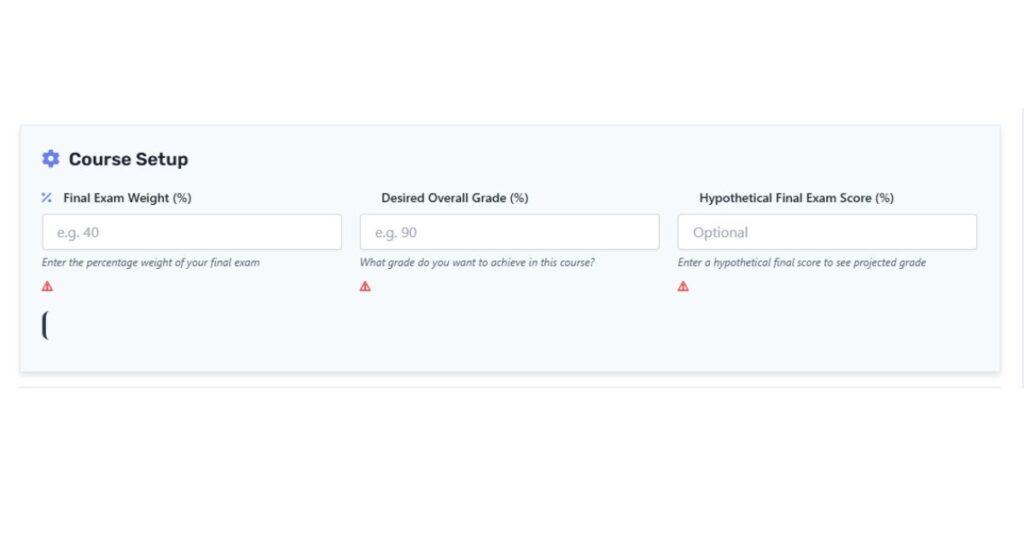
Start by typing the percentage weight of your final.
Most classes use 20%–40%, but follow your syllabus.
- Type the Final Exam Weight (%)
- Add your Desired Overall Grade (%)
- Keep the Hypothetical Final Score blank for now
Step 2: Add Your Assignments and Weights
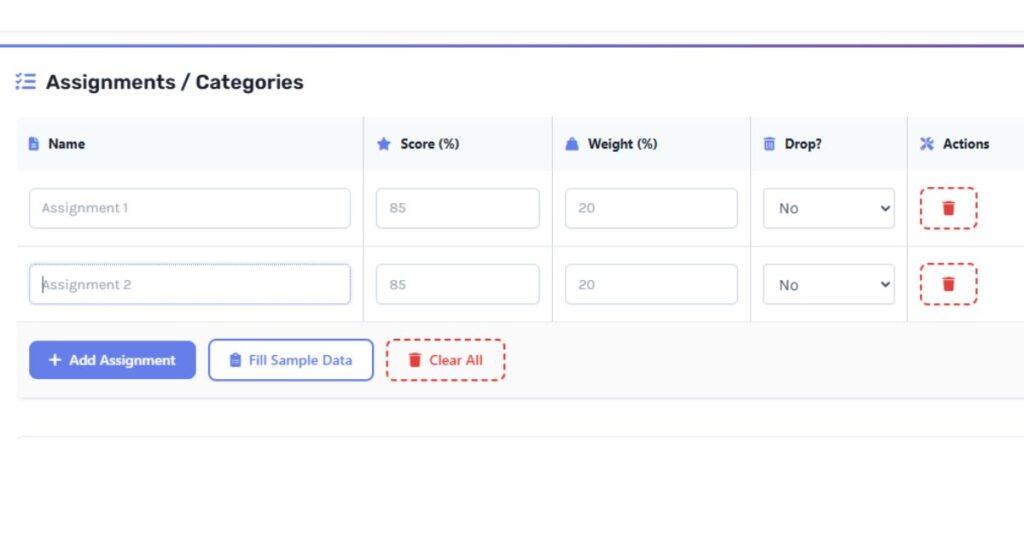
Now fill in each assignment category with its score and weight.
This helps the calculator match how Canvas handles weighted grades.
Add common categories like:
- Homework
- Quizzes
- Midterm
- Participation
Make sure the total weight (without final) adds up correctly.
Step 3: Review Your Current Grade
Once categories are added, the tool shows:
- Your current grade (without final)
- Total assignment weight
- Whether your weights add up to 100% with the final exam
This matches the real calculated final grade in the Canvas method.
Step 4: Check ‘What Do I Need on the Final?’
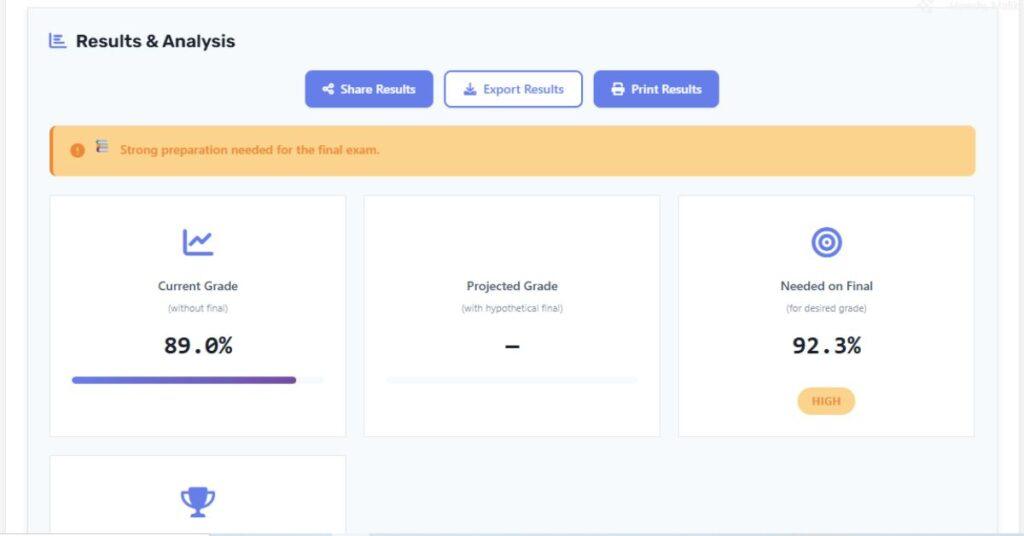
Now type a target grade or hypothetical final exam score.
The calculator instantly tells you:
- Projected Final Grade
- Score Needed on the Final
- Letter Grade / GPA
This result is far clearer than the built-in canvas final grade calculator.
Step 5: Export or Share Your Results
You can save your calculations using:
- Export
- Social sharing
This helps you keep track of your progress throughout the course.
Understanding What-If Calculators in Canvas
A What-If tool can help you predict your final course grade before your teacher enters every score. Many students use it when they want to know, “Canvas, what do I need on the final?” or when they need a faster way to estimate results than the built-in Canvas tools. This makes it a strong partner to any Canvas final exam grade calculator, especially when you’re trying to plan your study time. Here’s how to apply this effectively:
From my experience: I once didn’t know how much I needed for the final. Using a What-If scenario made it clear and helped me plan my study schedule. I felt much less stressed knowing the exact numbers.
How the What-If Feature Works
The What-If option lets you enter imaginary scores for assignments, quizzes, or finals. Canvas then updates your grade based on the values you enter. This helps you see how much each task affects your overall grade.
You can try different outcomes, such as a high quiz score or a low test score. This makes it easier to calculate the final grade in Canvas without guessing. Many students use it to test final exam scenarios and compare possible results.
What you can do with What-If:
- Check how a missing assignment will change your grade.
- Test different final exam scores.
- Compare outcomes for multiple categories.
- See how weighted grades affect each change.
Limits You Should Know
The What-If tool is helpful, but it doesn’t show the whole picture every time. Canvas may hide some categories until your teacher enables them. It also won’t include extra credit, dropped lowest scores, or locked assignments unless you enter them manually.
You may see different results if your course uses complex weights. When that happens, a separate Canvas final grade calculator gives more accurate predictions. Use both together when you want more precise answers to “calculate final grade in Canvas” before your teacher updates scores.
Keep these limits in mind:
- Hidden categories can change the final result.
- Some courses round grades differently.
- Extra credit may not appear in what-if predictions.
Tips to Maximise Accuracy
Accurate grade predictions help you avoid surprises and plan your final exam strategy with confidence. When students use a Canvas final exam grade calculator, small setup mistakes can cause significant changes in the result. The good news is that your calculator already reduces most errors with built-in validation and What-If testing. Use these tips to get the most reliable numbers every time:
My take: Always double-check that your assignment weights add up to 100%. Even a small error can change your needed final score by several points.
Double-Check Your Assignment Weights
Incorrect weights are the most common cause of inaccurate predictions. In Canvas, some courses hide categories until your teacher updates them, so your totals may not match the syllabus.
Your calculator helps by showing a clear weight summary, including assignment weights and final exam weight.
Before calculating, make sure:
- Every category has a weight
- The total equals 100%
- There are no missing or duplicate categories
- Dropped or optional assignments are marked correctly
This ensures your “calculate final grade in Canvas” results stay reliable.
Enter All Scores, Even Small Ones
Missing small assignments can change averages and affect your needed final exam score. Your calculator updates results in real time, so every score matters.
To keep predictions accurate:
- Add every quiz, homework, and participation grade
- Use the same rounding style your teacher uses
- Avoid leaving blanks unless the assignment isn’t graded yet
This gives the most realistic “canvas, what do I need on final” estimate.
Use What-If Scores to Compare Scenarios
Your calculator’s What-If feature helps you test different outcomes before the final exam. This is more flexible than the default Canvas What-If tool.
Try multiple scenarios to stay prepared:
- Best-case score
- Average expected score
- Minimum score you need to pass or reach your target
- A low score to understand risk
When you compare different possibilities, you see how much the final exam truly impacts your overall grade.
Common Mistakes and How to Avoid Them
Minor errors can lead to big surprises when predicting grades. Many students use a Canvas final exam grade calculator but still get the wrong results because the setup isn’t accurate. Canvas can also hide categories, drop scores, or round differently, which makes your grade harder to estimate. Here are the most common mistakes students make—and how to avoid them for reliable predictions.
From my experience: I once forgot to mark a dropped quiz in my calculator. It made my needed final score seem higher than it actually was. Fixing it gave me an accurate and stress-free target.
Incorrect or Missing Assignment Weights
Some courses use weighted grading, while others use points-based grading. If you enter the wrong weights, your calculations won’t match Canvas at all. Your calculator fixes part of this by checking whether the total weight equals 100%, but you still need to verify each category.
Avoid this by:
- Matching weights with your syllabus, not Canvas sidebar totals
- Checking that assignments = 70% and final exam = 30%
- Avoiding duplicate categories with overlapping weights
- Confirming that bonus or extra-credit items don’t change category percentages
Correct weights lead to accurate “calculate final grade in Canvas” results.
Leaving Empty Score Fields
Unentered scores lower or raise your current grade without you noticing. Even a small missing quiz changes your needed final exam score.
Avoid this by:
- Entering every graded item, even low-value assignments
- Using accurate percentages for each score
- Checking Canvas for missing or late-grade entries
This gives a much better “canvas—what do I need on the final?” calculation.
Not Accounting for Dropped or Excused Assignments
Canvas often drops the lowest score automatically, or teachers excuse some assignments. If you still include these in the calculator, your results become inaccurate.
Avoid this by:
- Checking if your course drops the lowest quizzes or homework
- Marking dropped assignments using the calculator’s “Drop?” option
- Removing excused items from the list completely
This keeps your prediction aligned with Canvas’s grading rules.
Ignoring Hidden Categories or Unreleased Scores
Some instructors hide categories until the end of the term. Canvas may not display weighted categories correctly until everything is published.
Avoid this by:
- Checking the syllabus for categories not shown in Canvas
- Adding these categories manually to your calculator
- Adjusting weights to match the complete list
Conclusion
You’ve now seen how final exam predictions work, why accuracy matters, and how to avoid the mistakes that confuse so many students. With the help of a canvas final exam grade calculator, you can finally stop guessing and start planning with confidence.
Whether you’re trying to figure out “canvas what do I need on final” or you’re trying to calculate final grade in Canvas for the first time, the steps in this guide make the process simple and beginner-friendly. You have everything you need to understand your grade and prepare wisely.
If this helped you, share it with a friend who’s stressing about finals. You can also drop a comment with your experience or explore more study tools on our website.

Hi, I’m Zohaib Ali, a BS-IT student at the University of Engineering and Technology. 🎓 I created CanvasGradeCalculator.com to make grade and GPA calculations simple, accurate, and stress-free for students, teachers, and parents. Passionate about tech and education, Helping learners plan smarter, study better.