Introduction
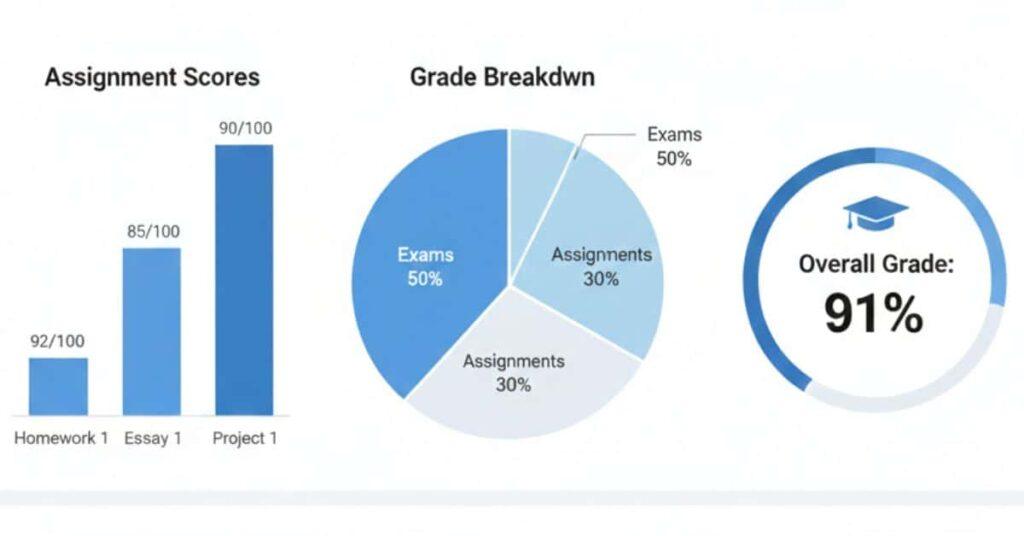
Ever looked at your Canvas percentages and wondered, “How does this translate to my GPA?” Many students in the USA struggle to convert Canvas grades into a meaningful GPA. Percentages alone can be misleading, especially when applying for scholarships or honors, or when planning your finals strategy.
That’s where a Canvas GPA calculator comes in. This free online tool lets you convert Canvas grades to GPA instantly, track your cumulative GPA, and even run what-if scenarios to see how future scores can impact your overall performance. Unlike guessing or relying solely on Canvas percentages, this tool provides accurate estimates tailored to your courses, credit hours, and your school’s grading scale.
This article explains what a Canvas GPA calculator is, how it works, and gives step-by-step guidance for using your free online tool. You’ll confidently plan grades, see the Canvas-GPA connection, and make smarter academic decisions.
Use our free Canvas GPA calculator to take control now!
What Is a Canvas GPA Calculator?
A Canvas GPA calculator converts Canvas percentages into GPA. It answers: “What does my Canvas grade mean as a GPA?”
Canvas shows percentages like 88% or 92%, but most colleges care about GPAs like 3.0 or 3.7. This confuses students. That’s where a Canvas GPA calculator helps.
Plain-English Definition
In short, it’s an online tool for converting Canvas percentages to GPA. It’s a calculator that:
- Takes your final percentages from Canvas
- Matches them to letter grades (A, B+, C, etc.)
- Converts those letters into GPA points
- Weighs each course by credit hours
- Shows your cumulative GPA
In short, it converts Canvas data into a GPA that schools understand.
GPA, or Grade Point Average, measures your academic performance. It measures your overall academic performance.
Here’s how GPA usually works:
| Letter Grade | GPA Value |
|---|---|
| A | 4.0 |
| B | 3.0 |
| C | 2.0 |
| D | 1.0 |
| F | 0.0 |
Courses with more credits count more in your GPA.
A Canvas GPA calculator does this math for you.
Canvas Course Grade vs GPA Difference
Canvas shows course grades, not GPA.
For example:
- You see: 90% in Biology.
- Your school records: A = 4.0 GPA
But this is not always exact. Some schools use:
- Custom grading scales
- Plus/minus systems (A-, B+, etc.)
- Different GPA cutoffs
That’s why the meaning of canvas GPA can change by school.
Why Canvas LMS Alone Is Not Enough
Canvas LMS does not always:
- Show your cumulative GPA.
- Use your school’s exact GPA scale.
- Factor credit hours correctly
- Include dropped or excluded courses.
- Let you run “what-if” scenarios.
Therefore, relying only on Canvas may lead to inaccurate conclusions.
How Third-Party Calculators (Like Yours) Help
A dedicated Canvas GPA calculator fixes these gaps. It lets you:
- Add multiple courses
- Set custom GPA scales
- Weight by credit hours
- Include or exclude courses.
- Run what-if GPA simulations.
- Export or save results
This gives you a clearer, more accurate, and customizable view of your GPA, making it easier to understand your academic progress and make informed decisions.
Mini Case Study:
| Course | Score (%) | Credits | Letter Grade | GPA Value |
|---|---|---|---|---|
| Math | 85% | 3 | B | 3.0 |
| Physics | 92% | 4 | A | 4.0 |
| Cumulative GPA | — | — | Auto-calculated | Calculated by tool |
Expert Tip:
Pro Tips
- Always match the GPA scale to your school’s policy.
- Double-check credit hours for each course.
- Use what-if tools before finals week.
Canvas Grade vs GPA (Important Concept)
Many students mix up Canvas grade vs. GPA. They look similar, but they mean different things. Canvas shows a percentage. Schools record a GPA. A Canvas GPA calculator helps bridge this gap.
Here’s a simple comparison:
| Canvas % Grade | Letter Grade | GPA |
|---|---|---|
| 93–100% | A | 4.0 |
| 90–92% | A- | 3.7 |
| 87–89% | B+ | 3.3 |
| 83–86% | B | 3.0 |
| 80–82% | B- | 2.7 |
| 77–79% | C+ | 2.3 |
| 73–76% | C | 2.0 |
| 70–72% | C- | 1.7 |
| 67–69% | D+ | 1.3 |
| 63–66% | D | 1.0 |
| Below 63% | F | 0.0 |
Note: This is a common scale. Your school may use a different one. Always check official policies.
Why 90% ≠ Always 4.0
Many students think 90% equals a perfect 4.0 GPA. That’s not always true.
Here’s why:
- Some schools set 93% as the cutoff for an A.
- Others use plus/minus grades like A- or B+.
- Some cap GPA values for certain courses.
- Honors or AP classes may use a weighted GPA.
So, 90% might map to:
- A- (3.7 GPA) at one school
- A (4.0 GPA) at another
This is why it’s important to use a Canvas-to-GPA converter that fits your school’s system, since there’s no universal rule.
University Grading Policies Differ
No two schools grade the same way.
Common differences include:
- GPA scale type (4.0, 5.0, or custom)
- Percentage cutoffs
- Rounding rules
- Extra credit handling
- Pass/fail courses
Canvas does not adjust for all these rules. It shows raw percentages. Your transcript applies your school’s grading policy.
This difference between Canvas grades and official GPAs often leads to confusion among students.
Transcript GPA vs Canvas GPA
Your transcript GPA is the official one. Your Canvas GPA is an estimate.
Key differences:
- Transcript GPA:
- Uses final verified grades
- Follows school rules
- Includes academic policies
- Canvas GPA:
- Uses live course data.
- May miss dropped courses
- May not apply custom scales
A Canvas GPA calculator helps you get closer to the real number. Still, always confirm with your school.
Mini Case Study:
| Course | Score (%) | Letter Grade | GPA Value | Notes |
|---|---|---|---|---|
| Chemistry | 90% | A- | 3.7 | Higher credit impact |
| History | 85% | B | 3.0 | Lower credit weight |
| Final GPA | — | — | Auto-calculated | Credits affect GPA weight |
Expert Tip:
Advisors suggest GPA tools for planning scholarships and honors eligibility.
“To understand how grade tracking can boost your performance, read How the Canvas Grade Calculator Helps You Study Smarter and Improve Your GPA.”
How Your Canvas GPA Calculator Works
Our online canvas GPA calculator converts raw Canvas percentages into a clear GPA. It mirrors how schools calculate GPA, but keeps the process simple and fast.
No formulas or spreadsheets needed. Enter course details, pick your grading scale, and get instant results. The tool supports weighting by course importance, your own scales, and trying different outcomes.
Below is a clear breakdown of each section.
4.1 Add Course Section
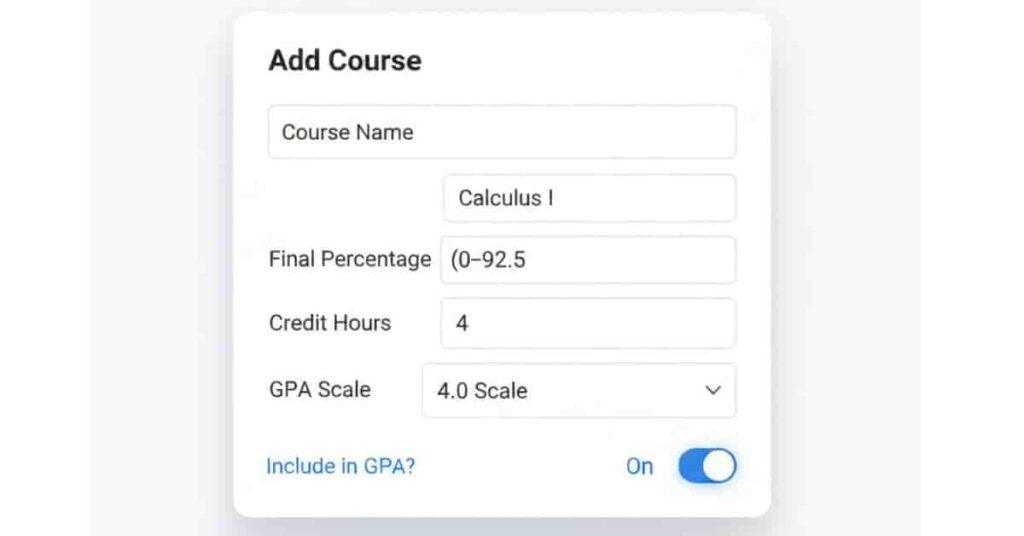
This is where you enter each class.
Course Name
- Add any label like “Math” or “Physics.”
- This labeling method enables clear course organization.
Final Percentage (%)
- Input the final percentage grade shown in Canvas.
- Examples include: 85, 92.5, or 78.
Credit Hours
- Input the number of credits assigned to the course.
- Courses with more credits have a greater impact on GPA.
Include in GPA Toggle
- Toggle this setting on or off for each course.
- Use this for pass/fail and dropped classes as needed.
This section helps you weigh courses properly in your GPA calculation, ensuring the result reflects each class’s true impact for accurate planning and tracking.
4.2 GPA Scale Section
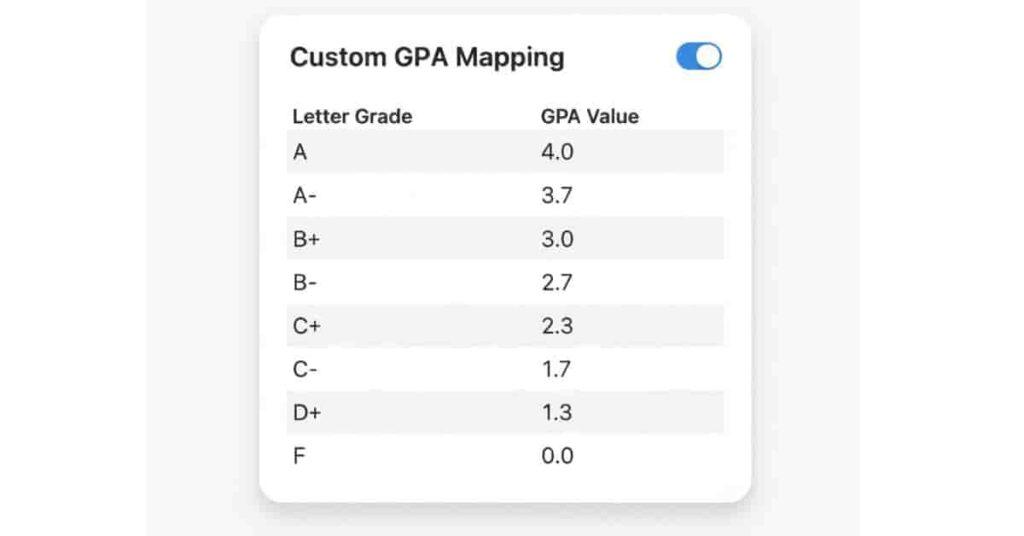
Because every school grades differently, this section lets you align your GPA with your school’s exact rules for a tailored and accurate result.
Default 4.0 Scale
- Applies a typical GPA mapping system.
- Suitable for quick GPA estimates.
Custom GPA Scale
- Modify grade cutoffs and point allocations.
- Customize the scale to your university’s policies.
Letter Grade Mapping
You can adjust values for:
| Letter Grades |
|---|
| A |
| A- |
| B+ |
| B |
| B- |
| C+ |
| C |
| C- |
| D+ |
| D |
| F |
This makes the tool fully customizable for your GPA scale.
4.3 Automatic Outputs
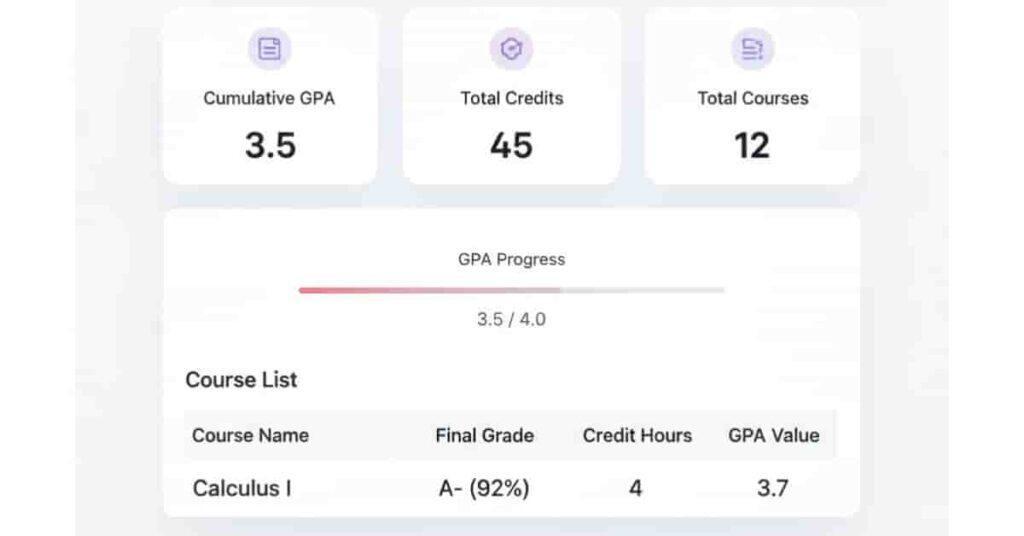
Letter Grade
- Displays your grade for each course entered.
GPA
- Shows the GPA calculated for each course.
Cumulative GPA
- Calculates the combined GPA for all included courses.
- Results are weighted according to credit hours.
- Functions like a real cumulative GPA calculator.
Total Credits
- Sums all credit hours for included courses.
Total Courses
- Counts all courses currently included in your calculation.
GPA Tips & Warning Messages
- For example, you might be close to earning a higher grade.
- A small improvement could increase your GPA.
- A course lowers your average.
Use these insights to plan for finals effectively.
Pro Tips
- Always match the GPA scale to your school’s policy.
- Double-check credit hours for accuracy.
- Use include/exclude toggles for pass/fail classes.
- Try what-if scores before finals week.
Mini Case Study
| Course | Score (%) | Letter Grade | GPA Value | Credits |
|---|---|---|---|---|
| Math | 85% | B | 3.0 | 3 |
| Physics | 92% | A | 4.0 | 4 |
| Cumulative GPA | — | — | Auto-updated | Based on credits |
Step-by-Step: How to Calculate GPA Using This Tool
This guide explains how to calculate GPA in Canvas using our simple tool. Skip complex math—just follow these steps.
Step 1: Click “Add Course”
Click Add Course to begin. A new row appears for your class.
Step 2: Enter Course Name
Type a short name like:
- Math
- Biology
- English 101
This keeps courses organized.
Step 3: Enter Final Percentage
Enter your percentage from Canvas. Examples:
- 85
- 92.5
- 78
Use exact numbers for accuracy.
Step 4: Add Credit Hours
Enter the course’s credit hours. For example:
- 3 credits for most lectures
- 4 credits for labs
- 1 credit for electives
More credits impact GPA more.
Step 5: Choose GPA Scale
Pick one option:
- Default 4.0 scale for quick results
- Custom GPA scale to match your school
Edit letter grade cutoffs if needed.
Step 6: Click Calculate
Click Calculate. Results update instantly.
Step 7: View Your Results
You’ll see:
- Letter grade for each course
- GPA per course
- Cumulative GPA for all courses
- Total credits
- Total courses
Your Canvas GPA is now calculated.
Step 8: Export / Save / Share Results
You can:
- Export results as a CSV file
- Save your session for later.
- Share your GPA with others
- Print a copy for records.
These help with advising and planning.
Example: One Course GPA
Let’s run a quick example:
- Course: Math
- Final Percentage: 85%
- Credit Hours: 3
- GPA Scale: Default 4.0
| Result | Value |
|---|---|
| Percentage | 85% |
| Letter Grade | B |
| GPA | 3.0 |
| Credits | 3 |
If this is your only class, your cumulative GPA = 3.0.
What-If GPA Simulation (Killer Feature)
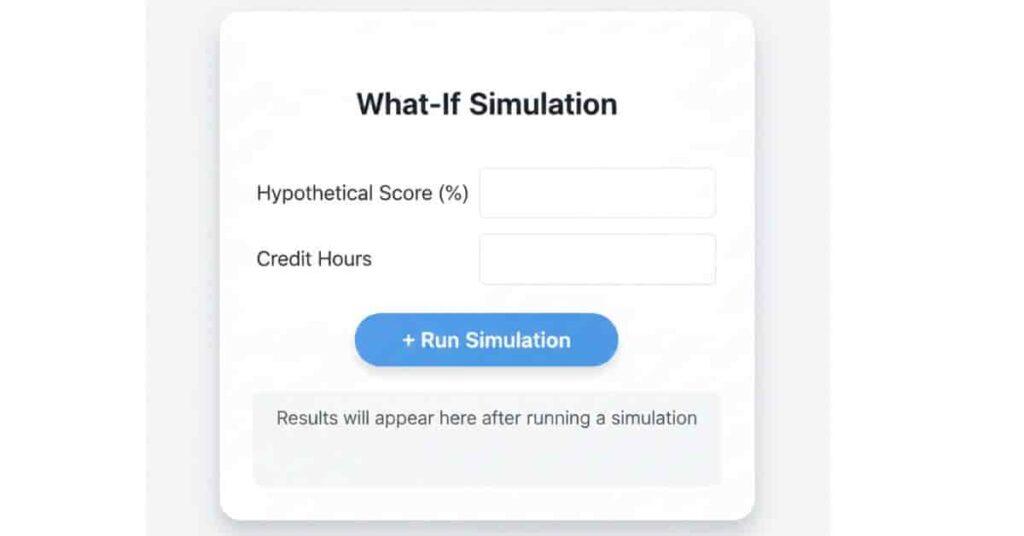
The what-if GPA calculator empowers you to take control before exams. It reveals exactly how your effort can transform your GPA. With this feature, you turn uncertainty into a winning strategy.
Instead of just hoping for the best, you can now view real outcomes. This clarity turns the calculator into a smart GPA-improvement tool for finals week.
Explain the Hypothetical Score Tool
The what-if tool lets you enter a fake score for a course.
The calculator treats it like a real grade.
You can answer questions like:
- “What GPA if I score 90% in Physics?”
- “How much does my GPA rise with an A?”
- “Can I reach a 3.5 this term?”
The tool updates results instantly. You can try many scores in seconds.
Your final exams can change everything
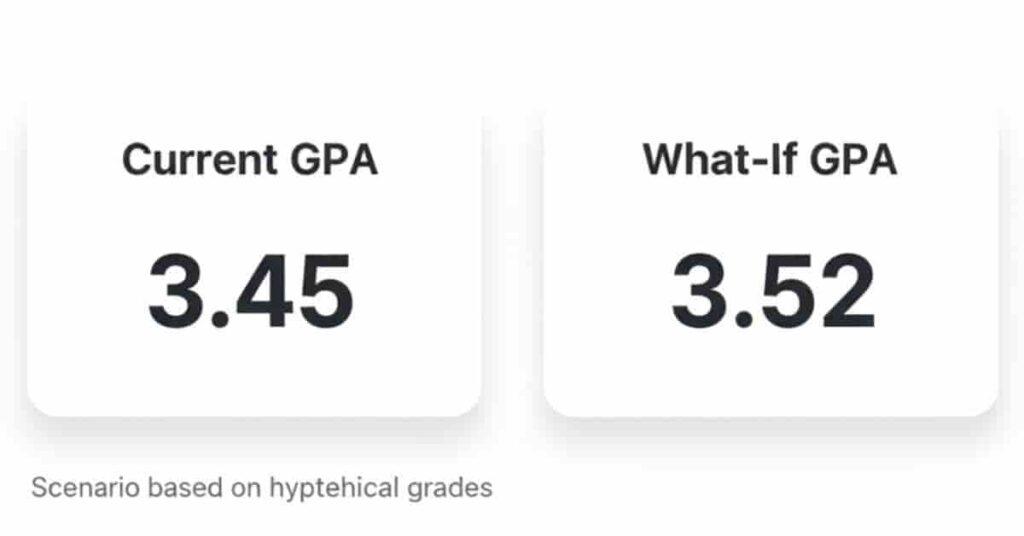
Final exams can change everything.
The what-if tool puts you in the driver’s seat for final exam preparation.
It lets you:
- Set realistic GPA goals.
- Focus effort on high-credit courses
- See how much a small boost helps.
- Decide if a grade jump is worth it.
For example, raising one class by 5% may increase GPA more than perfecting a low-credit course.
With this insight, you save time, reduce stress, and power up your performance.
Fields Explained
Hypothetical Score
- Enter a future percentage for a course.
- Example: 88, 90, or 95.
Credit Hours
- Add how many credits the course carries.
- Higher credits change GPA more.
These two fields drive the simulation.
Outputs Explained
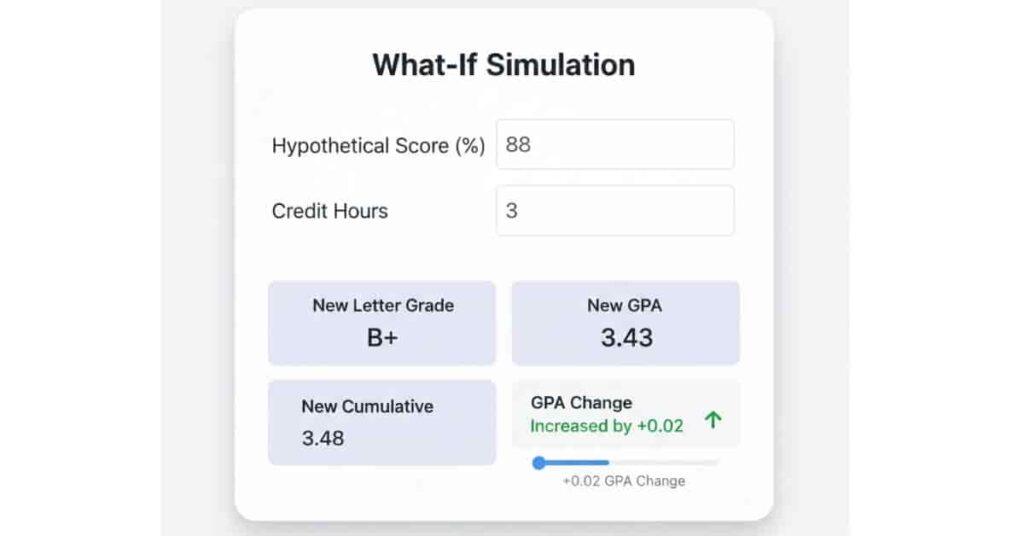
Once you enter values, you’ll see:
New Letter Grade
- Shows what grade you’d earn.
New GPA
- Displays GPA for that course.
New Cumulative GPA
- Updates your overall GPA.
GPA Change
- Shows how much your GPA rises or falls.
This makes the results easy to understand.
Is the Canvas GPA Calculator Accurate?
Many students wonder about the accuracy of the Canvas GPA calculator. The short answer: it’s very reliable if you enter correct information, but results can differ slightly from your official transcript. Understanding why helps you use the tool confidently.
How Accuracy Depends on Key Factors
- Correct Percentages
- For best results, always enter the exact percentage shown in Canvas. This helps ensure your GPA outcome is as accurate as possible.
- Missing or rounded grades can skew GPA.
- Correct Credit Hours
- Each course’s weight matters.
- For example, a 4-credit course has more effect on your GPA than a 1-credit course, so careful entry makes your estimate more reliable.
- Double-check credit entries for accuracy.
- Correct GPA Scale
- Schools may have different cutoffs for letter grades (A-, B+, etc.).
- Using the default 4.0 scale may not align with your institution’s standards.
- If possible, use your school’s custom scale for the most accurate and reassuring results.
Why Results May Differ from Transcripts
Even with perfect input, your calculator and transcript results may differ slightly. This typically happens because some schools use weighted GPAs for honors or AP classes.
- Canvas may exclude certain grades, like pass/fail or dropped courses.
- Small rounding differences in percentages or GPA points are normal and not usually significant.
- University policies may assign slightly different cutoffs.
Rounding Rules Explanation
- Most calculators round GPA to two decimal places (e.g., 3.666 becomes 3.67).
- However, schools might round to fewer or more decimal places, or use different rounding rules.
- For example, a GPA of 3.666 could round to 3.67 in the calculator, but your transcript might show 3.66, depending on your school’s rules.
Accuracy Disclaimer
- Think of the calculator as a helpful planning tool designed to give you a reliable GPA estimate, not an official record.
- For official purposes, such as scholarships or honors, always double-check with your school or your transcript. The calculator is here to support your planning, not to replace your official record.
- Use this tool as a reliable estimate to support your study planning and goal-setting with confidence.
Benefits of Using This GPA Calculator
A free Canvas GPA calculator puts you in control—it’s fast, accurate, and easy to use.
Key Benefits
| Feature | Description |
|---|---|
| Instant GPA Calculation | Get free, instant GPA calculations in seconds without paying. |
| Custom GPA Scale | Adjust letter-grade cutoffs to match your school’s GPA scale. |
| Letter Grade Mapping | View exact letter grades for each course. |
| Cumulative GPA Tracking | Combine all courses to track your cumulative GPA accurately. |
| What-If GPA Predictions | Test hypothetical scores for better study planning. |
| CSV Export | Export GPA results as a CSV for advisors or records. |
| Session Saving | Save sessions for multiple calculations without re-entry. |
| Easy Sharing | Share GPA results with parents, tutors, or peers. |
| Course Inclusion Control | Include or exclude courses that count toward GPA. |
| GPA Alerts | Receive warnings when you’re near grade changes. |
Why It Matters
- Students instantly see their GPA without manual math. It’s perfect for semester planning, scholarship tracking, and finals prep.
- Supports both simple estimates and detailed what-if scenarios.
- Works as a reliable online GPA calculator for accurate academic decisions.
Common Mistakes Students Make
Even with a Canvas GPA calculator, it’s easy to make small mistakes. By dodging these common errors, you’ll keep your GPA estimate dependable.
1. Entering Wrong Credit Hours
- Remember, your GPA is influenced by each course’s credit weight.
- A 4-credit course packs more punch than a 1-credit course!
- If you enter the wrong credits, your GPA could end up too high or too low.
Pro Tip: Double-check your course syllabus or transcript before adding credits.
2. Choosing the Wrong GPA Scale
- Some schools might even use their own GPA scales, not just the standard 4.0 scale.
- Using the default scale could mean your GPA estimate is a bit off.
Pro Tip: Always match the calculator’s GPA scale to your school’s grading policy.
3. Forgetting to Include a Course
- If you forget a course, your total GPA might not be quite right.
- It’s easy to skip electives or labs, especially if they seem unimportant.
Pro Tip: Include all courses that affect your GPA, even small credit ones.
4. Ignoring Dropped or Failed Classes
- Canvas can display incomplete or dropped courses in unexpected ways.
- If you don’t count these, your GPA might not line up with your school’s view.
Pro Tip: Use the include/exclude toggle carefully to reflect your school’s rules.
5. Trusting Only Canvas Default GPA
- Canvas percentages alone don’t always add up to what’s on your transcript.
- Schools sometimes use rounding, weighted GPA, or even their own cutoffs.
Pro Tip: Use the calculator as an estimate, then verify with your official transcript.
Real-Life Example: GPA in Action
GPA can be confusing, right? Let’s dive into a real-life situation to make sense of it.
Scenario
Ali is sure his GPA will be 3.3 (B+), but when he checks the Canvas GPA calculator, it reads 3.0 (B). What’s going on here?
Why It Happens
- Missing Assignment
- Canvas only shows percentages for work you’ve submitted.
- If a homework or quiz is missing, the percentage drops.
- Even one small missing task can pull your GPA down.
- Credit Hour Weighting
- Not every class is created equal.
- A 4-credit Physics course has more impact than a 1-credit elective.
- The Canvas calculator multiplies GPA points by credit hours, affecting cumulative results.
- Custom GPA Scale Difference
- Ali’s school plays by its own rules—a plus/minus system.
- A 90% is an A- (3.7) on Ali’s school’s GPA scale, but the calculator’s default treats 90% as a B+ (3.3).
- That mismatch is the puzzle piece behind Ali’s surprise result.
How to Fix Using What-If Simulation
With the what-if GPA tool, Ali can try out different scenarios—like adding his missing assignment scores.
- Adjust potential final exam percentages.
- Use the school’s GPA scale for calculation.
After testing, Ali can see:
- How much does he need on finals to reach 3.3
- Which courses affect GPA the most
- Clear steps to improve grades before the term ends. In summary, understanding credit weighting, missing assignments, and your school’s GPA scale explains GPA differences. Using the what-if tool helps you set clear goals and identify which actions will most improve your GPA before the term ends.
conclusion
Using a Canvas GPA calculator makes tracking your grades a breeze. We explored what it is, how it works, and how to turn Canvas percentages into your GPA. You also discovered how the what-if GPA calculator can help with finals planning and the key differences between Canvas grades and GPA.
Remember, getting accurate results is all about plugging in the right percentages, credit hours, and your school’s unique GPA scale. Even the smartest tool gives an estimate, so double-check with your transcript for peace of mind!
For best results, use both tools! Use the Canvas GPA Calculator for a big-picture look at your GPA and the Canvas Grade Calculator for tracking wins in each class.
Experience stress-free grade planning—try our free Canvas GPA Calculator now. Take charge of your semester by using our Canvas Grade Calculator to stay on top of every course!

We are the Canvas Academic Team, a developer team focused on building simple and practical tools that help students succeed academically. This platform was created specifically for Canvas LMS students to make grade tracking, GPA calculations, exam planning, and academic management easier and more efficient.
Our focus is on creating fast, accurate, and student-friendly educational tools along with helpful learning resources that improve productivity and reduce academic stress.
Through CanvasGradeCalculator.com, our goal is to continue building useful resources that help students study smarter, stay organized, and achieve better academic results.