
Instantly calculate your Canvas GPA with accurate grade and credit-hour weighting. Enter your course grades, select your GPA scale, and view both semester and cumulative GPA results in seconds. Use the What-If GPA planner to explore future grade scenarios and stay on track throughout the semester.
Add or edit courses anytime to see how your grades and credit hours affect your estimated GPA. You can also adjust percentage grade boundaries to better match your school’s grading policy.
🔐 Data-Safe • 🛡️ No Sign-Up Required • 🚫 No Tracking • ✔️ Fast & Accurate • ❤️ Trusted by Students
🚀 Feature Highlights
📚 Per-Course & Cumulative GPA | Calculate GPA points for individual courses and your overall credit-weighted GPA. | Understand how each course contributes to your GPA.
🔢 Flexible GPA Scales | Choose from 4.0, 4.33, 5.0, or custom GPA scales. | Adjust your calculations to better reflect your institution’s grading policy.
🔍 What-If GPA Simulation | Explore how a potential course grade could affect your projected GPA. | Compare possible outcomes before the semester ends.
🎯 Customizable Grade Boundaries | Adjust percentage cutoffs to match your selected grading rules. | Get GPA estimates based on your chosen grade boundaries.
🎓 Canvas student tool
Canvas GPA Calculator
Turn the final percentages in Canvas into a clear, credit-weighted GPA.
➕ Add a course
Add your Canvas percentage and credit hours. Letter grade and GPA points update as you type.
Custom GPA mapping
Set the points used for each letter grade.
Customize percentage grade boundaries
Defaults use a common grading example. Enter cutoffs from highest to lowest; each cutoff must be between 0 and 100, and lower grades must have lower cutoffs. Your last valid set remains active until the values form a valid sequence.
📋 Your courses
Included courses are used in the credit-weighted cumulative GPA.
| Course | Percentage | Letter | GPA | Credits | Include? | Actions |
|---|
📊 GPA dashboard
Live summary of the courses currently included in your GPA.
Course GPA distribution
GPA points by included course.
No included courses to display.
Grade distribution
Included courses grouped by letter grade.
No included courses to display.
How your GPA is calculated
Quality points are the GPA points for a course multiplied by its credit hours.
Quality Points = GPA × Credit HoursAdd an included course to see your actual calculation.
Cumulative GPA = Total Quality Points ÷ Total Credit HoursCanvas percentage conversion
Each percentage uses your active cutoffs and selected GPA scale. These are configurable examples, not a universal Canvas or institutional policy; confirm your school’s grading rules.
💡 What-if simulation
Preview how a hypothetical course could affect your current GPA.
Enter a score and credits to see whether the course improves or lowers your GPA.
🎯 How much do I need?
Estimate the GPA points needed in upcoming course work to reach a target.
How to Use Canvas GPA Calculator (Step-by-Step Guide)
- 📚 Step 1
- ⚖️ Step 2
- ☑️ Step 3
- 📊 Step 4
- 🗂️ Step 5
- 📈 Step 6
- 🧮 Step 7
- 💡 Step 8
- 💾 Step 9
Step 1: Add Your Course Details
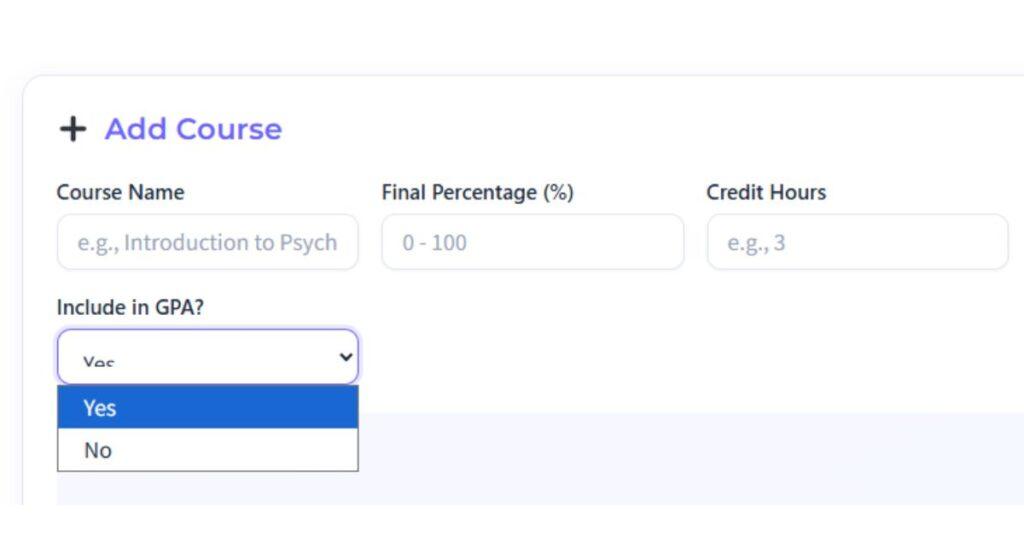
- Enter the course name.
- Add your final percentage (0–100%) from Canvas.
- Enter the correct credit hours.
Why this matters: Courses with more credit hours have a bigger impact on your GPA, so accuracy here is important.
Step 2: Select the Correct GPA Scale
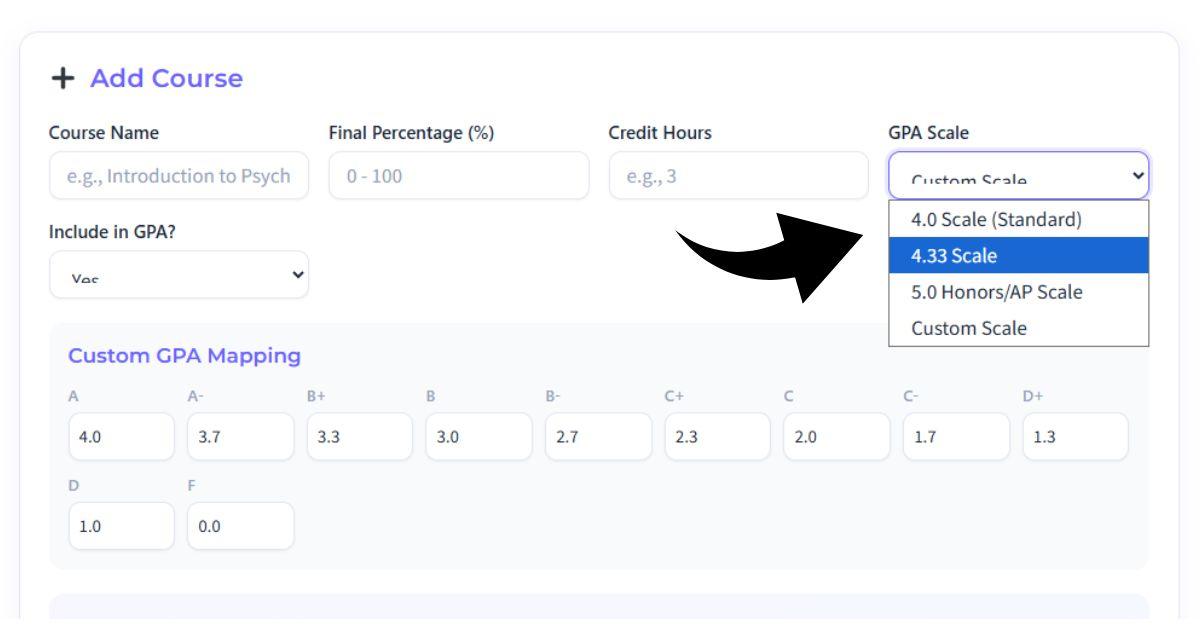
Choose the GPA scale used by your school:
4.0 scale (standard)
4.33 scale
5.0 scale (Honors / AP)
Custom GPA scale
Tip: If your school uses weighted grading for Honors or AP classes, make sure you select the matching scale.
Step 3: Choose Whether to Include the Course
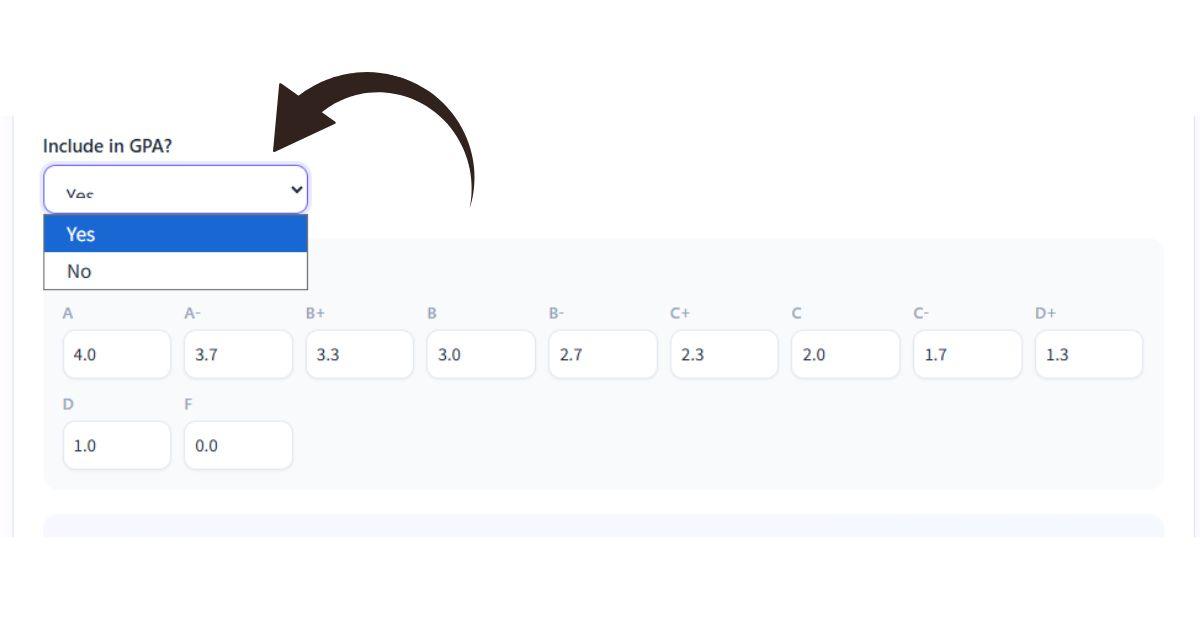
Decide if a course should be counted in your GPA.
Include graded courses
Exclude pass/fail, withdrawn, or non-GPA courses
This gives you full control and keeps your GPA calculation accurate.
Step 4: Review Letter Grades and GPA Results
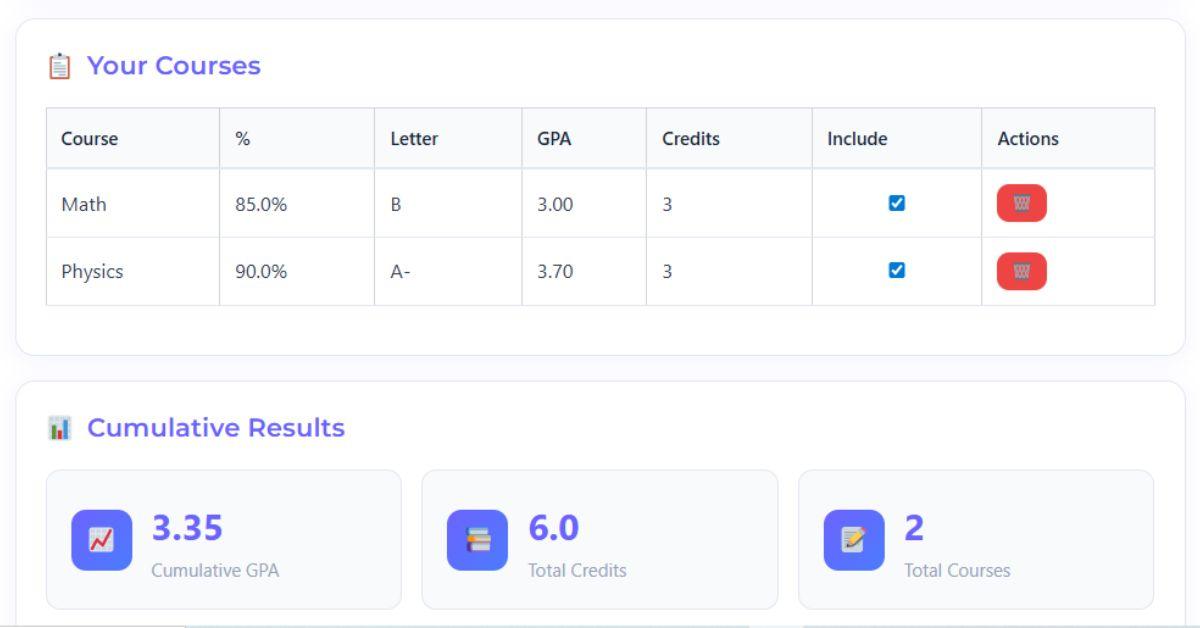
Once added, the calculator instantly shows:
Letter grade for each course
Per-course GPA
Total credits
Cumulative GPA
Canvas percentages are automatically converted into GPA-ready results — no manual math required.
All calculations are automatic and error-free, helping you avoid manual mistakes and saving valuable time.
Step 5: Choose Which Courses Count Toward Your GPA
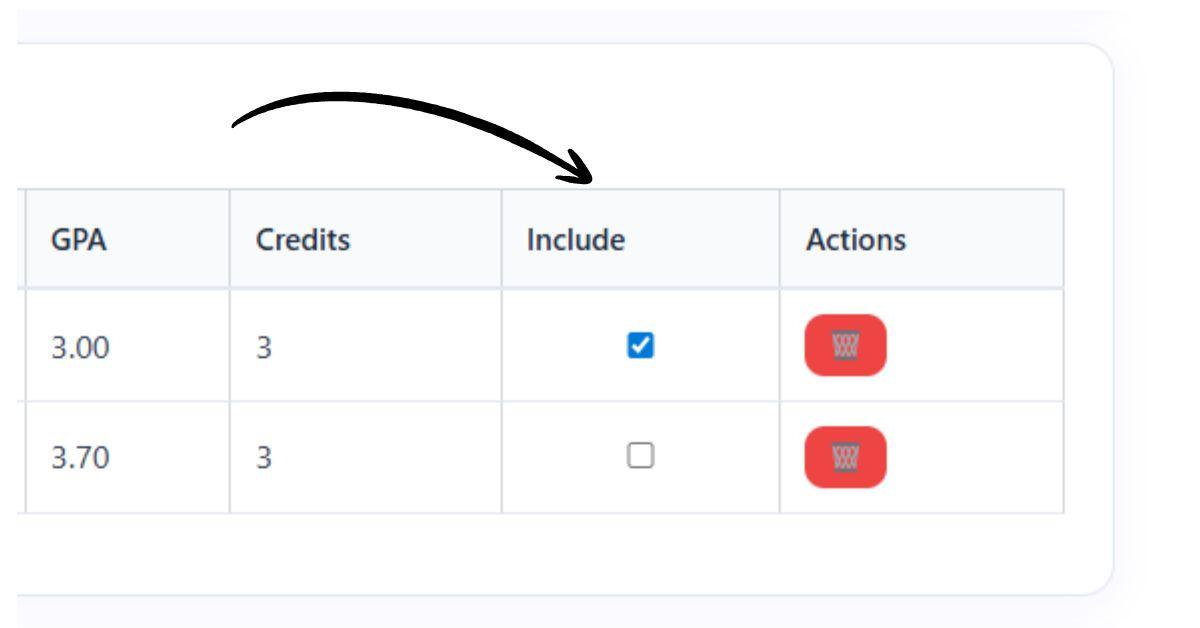
Each course includes an “Include in GPA” checkbox (✔ / ⬜) that lets you control whether a class affects your cumulative GPA.
✔ Checked → The course is included in your cumulative GPA
⬜ Unchecked → The course is excluded from GPA calculation
Your cumulative GPA updates instantly when you toggle this option.
When Should You Exclude a Course?
This option is especially useful if:
The course is pass/fail
You are retaking a class
The course does not count toward your major GPA
You want to calculate a major-only or term-only GPA
This flexibility helps students get a more accurate and realistic GPA, just like official Canvas and school reports.
Step 6: Track Progress During the Semester
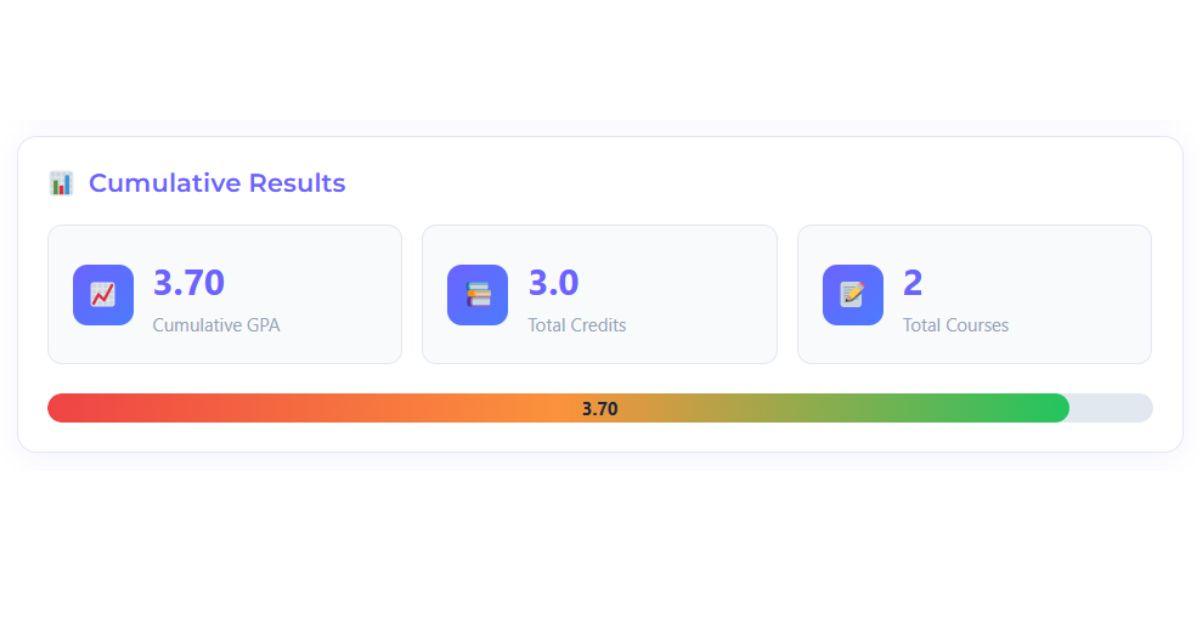
Don’t wait for final grades. Update percentages as the semester continues to see where you stand and adjust your effort early.
This helps avoid surprises and reduces end-of-term stress.
Step 7: Use the What-If GPA Simulation
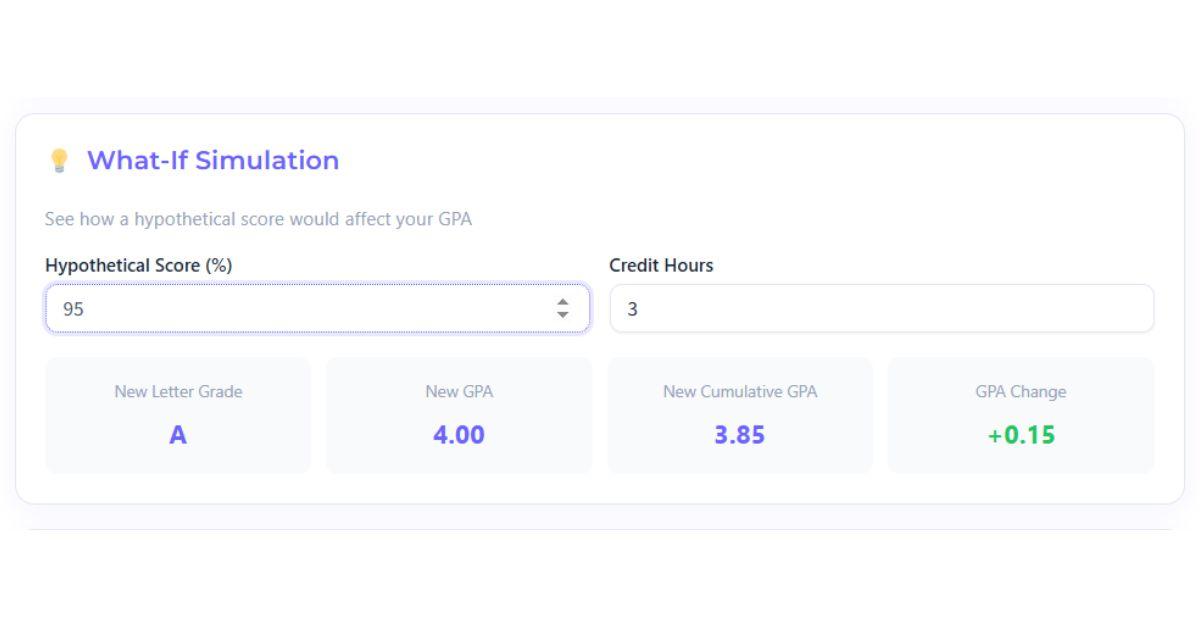
Planning ahead? Enter a hypothetical score and credit hours to see:
New letter grade
Updated course GPA
New cumulative GPA
GPA increase or decrease
Perfect for assignment planning, exam preparation, and GPA goal setting.
Step 8: Get Personalized GPA Improvement Insights
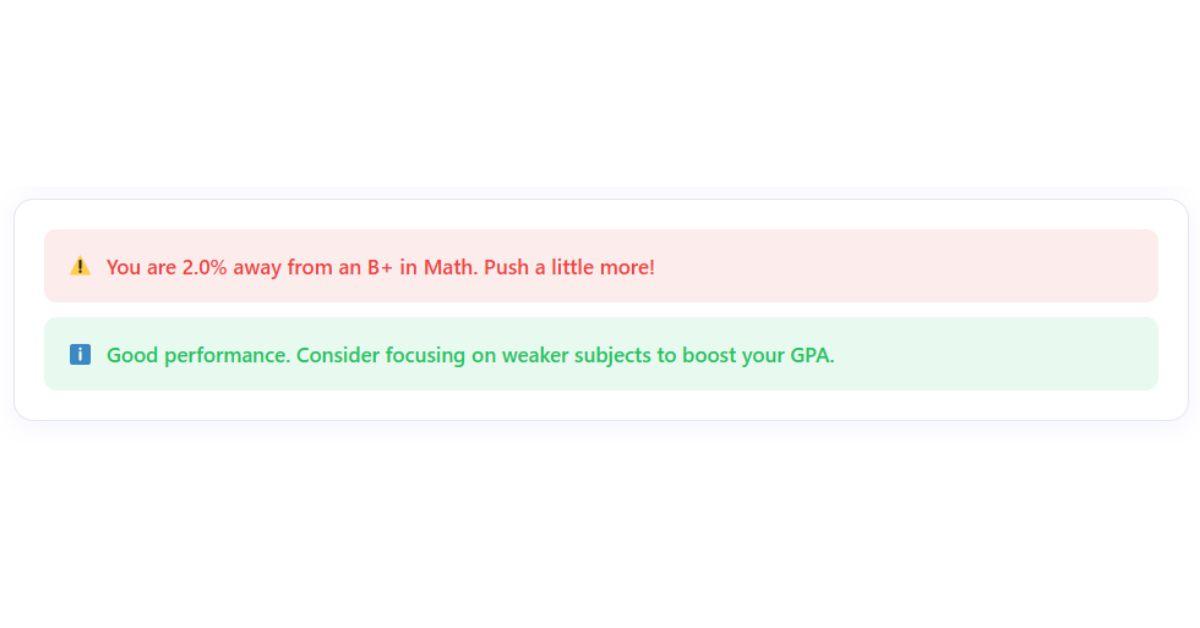
After running the What-If Simulation, the calculator automatically generates smart improvement suggestions to help you understand how close you are to the next grade and where to focus your effort.
What You’ll See:
⚠️ Grade Gap Alerts
“You are 2.0% away from a B+ in Math. Push a little more!”
ℹ️ Performance Insights
“Good performance. Consider focusing on weaker subjects to boost your GPA.”
These insights help students:
Identify near-miss grade boundaries
Focus effort where it can create the biggest GPA improvement
Stay motivated with clear, actionable academic guidance
Make smarter decisions before final grades are locked
Step 9: Save, Export, or Print Your Results. When you’re done:
No account required. Your data stays private and on your device.
Your data never leaves your device. Everything runs securely inside your browser for complete privacy.
No sign-up required
No data is stored on servers
Calculations happen in your browser
Built specifically for Canvas LMS students in the U.S.
🎯 Final Tip for Students
Check your GPA regularly, not just at the end of the semester. Small improvements early can make a big difference in your final GPA.
Weighted vs. Unweighted GPA
Understanding weighted and unweighted GPA helps you interpret your academic performance and understand how your college or school evaluates grades. The main difference is whether advanced courses receive additional GPA points.
Our Canvas GPA Calculator supports multiple GPA scales, including 4.0, 4.33, 5.0, and custom scales. Your results depend on the grading rules and GPA values you select.
What Is an Unweighted GPA?
An unweighted GPA measures academic performance without adding extra points for course difficulty. A traditional unweighted scale commonly ranges from 0.0 to 4.0.
For example, an A in a regular course and an A in an honors course may both receive 4.0 points. The exact value depends on your school’s grading policy.
Many colleges use an unweighted GPA when reviewing academic performance. However, admissions offices may also consider course difficulty, class rank, and other academic factors.
What Is a Weighted GPA?
A weighted GPA gives additional points for certain advanced courses. Depending on the school’s policy, these courses may include Advanced Placement (AP), Honors, International Baccalaureate (IB), or other advanced classes.
For example, a school might award 4.0 points for an A in a regular course and 5.0 points for an A in an eligible advanced course. Other schools use different weighting systems.
A weighted GPA can exceed 4.0 when the school’s grading policy allows it. Not every institution uses weighted GPA, and advanced courses do not automatically receive extra points everywhere.
Key Differences Between Weighted and Unweighted GPA
Unweighted GPA: Measures grades without additional points for course difficulty.
Weighted GPA: May award extra points for eligible advanced courses.
Maximum GPA: An unweighted scale commonly uses 4.0, while a weighted scale may allow higher values.
School policies: Course eligibility, grade boundaries, and bonus points vary by institution.
College admissions: Colleges may evaluate weighted GPA, unweighted GPA, course rigor, or their own recalculated GPA.
Which GPA Scale Should You Use?
Choose the scale that matches your institution’s grading policy. A 4.0 scale is common, while some schools use 4.33, 5.0, or customized systems.
If your school awards extra points for advanced coursework, check how those points are calculated before selecting a weighted scale. Simply choosing a 5.0 scale does not automatically apply your school’s weighting rules.
Important: Canvas displays course grades according to the grading scheme configured for your course. Your official GPA may be calculated separately using your institution’s rules. Use the correct GPA points and grade boundaries for the most meaningful estimate.
Real Use Cases for Canvas LMS Students
The Canvas GPA Calculator helps students understand their academic standing, estimate GPA changes, and plan future coursework. By entering course percentages, credit hours, and an appropriate GPA scale, you can explore different academic scenarios before final grades are available.
🎓 College Admissions Planning
Your GPA can be one factor in college admissions. Use the calculator to estimate your current GPA and understand how your completed courses contribute to your academic record.
If you are preparing applications, compare your estimate with the GPA reported on your official transcript. Colleges may calculate or evaluate GPA differently, so your calculator result should not replace official academic records.
💼 Scholarship and Academic Requirements
Some scholarships, honors programs, and academic opportunities require students to maintain a minimum GPA. You can use the calculator to estimate your current standing and identify whether future grades could affect your target.
Always review the specific eligibility rules. Some programs use cumulative GPA, while others consider semester GPA, completed credits, or additional academic requirements.
📊 Semester Progress Tracking
Track your grades throughout the semester instead of waiting until the end. Add your courses, enter their percentages, and include the correct credit hours to see how your current results contribute to your estimated GPA.
Update your entries when your grades change. Remember that a current Canvas percentage may not represent your final course grade if assignments remain incomplete or your instructor uses weighted assignment groups.
🎯 GPA Goal Planning
Use the What-If GPA Simulation to explore how a possible future course grade could affect your estimated GPA. You can also use the target GPA planner to estimate the average GPA points needed across upcoming credits.
For example, if you want to raise your cumulative GPA from 3.20 to 3.40, enter your current GPA, completed credits, target GPA, and upcoming credits. The result can help you understand the academic performance required to reach your goal.
Treat the result as a planning estimate. The actual outcome depends on your institution’s grading rules and the credits that count toward your GPA.
🔄 Comparing GPA Scales
Students may encounter different GPA scales when reviewing school policies, planning advanced coursework, or preparing for college. The calculator supports several scales so you can enter the GPA points that match your institution’s system.
For a meaningful comparison, use the appropriate grade boundaries and GPA values for each scale. Do not assume that the same percentage produces the same GPA at every school.
📚 Long-Term Academic Planning
Monitoring GPA across semesters can help you understand your academic progress and set realistic goals. You can use your current estimate to explore future grade scenarios and decide where additional study time may be useful.
For long-term planning, keep your completed credits and previous GPA consistent with your official academic records. Check your institution’s policies on repeated courses, transfer credits, and excluded grades because these can affect cumulative GPA calculations.
Why Students Use This Canvas GPA Calculator
The Canvas GPA Calculator combines course-level GPA estimates with practical planning features to help students understand their academic progress.
Credit-weighted calculations: Uses course GPA points and credit hours to calculate an estimated cumulative GPA.
Multiple GPA scales: Supports 4.0, 4.33, 5.0, and custom scales, depending on your institution’s grading policy.
What-If GPA simulation: Explore how a hypothetical course grade could affect your estimated cumulative GPA.
Target GPA planning: Estimate the GPA points needed in upcoming coursework to reach a chosen target.
Course-level results: Review individual course percentages, letter grades, GPA points, and credits.
Export and print options: Save or print your results for personal academic planning when these features are available in the calculator.
Simple course management: Add, edit, or remove courses as your grades change.
No account required: Start using the calculator without creating an account.
Get a Clearer Picture of Your Academic Progress
Whether you are tracking semester grades, preparing for scholarship requirements, or planning future coursework, a GPA estimate can help you make more informed academic decisions.
Enter your course grades and credit hours in the calculator above, select the GPA scale that matches your institution, and review your results. For official academic decisions, always confirm your GPA with your college’s transcript or registrar.
Semester GPA vs. Cumulative GPA
Semester GPA and cumulative GPA measure your academic performance in different ways. Understanding the difference helps you track your grades, set realistic academic goals, and prepare for future semesters. You can use our Canvas GPA Calculator to estimate both results using course GPA points and credit hours.
What Is Semester GPA?
Semester GPA measures your academic performance across courses taken during a single semester. It uses the GPA points and credit hours for the courses included in that semester.
For example, if you take English, Biology, and College Algebra during the fall semester, your semester GPA reflects the grades and credits included for those courses.
Semester GPA helps you evaluate your progress during a particular academic term. Comparing semester results can also help you identify improvements or areas that need more attention.
What Is Cumulative GPA?
Cumulative GPA represents your overall GPA across the coursework included in your academic record. It typically combines eligible courses from multiple semesters, according to your institution’s policies.
For example, your cumulative GPA may include courses from your freshman and sophomore years. A strong semester can improve your cumulative GPA, while a weaker semester may lower it.
Your cumulative GPA does not necessarily equal the simple average of your semester GPAs. Courses with different credit hours can contribute different amounts to the overall result.
What Is the Difference Between Semester and Cumulative GPA?
The main difference is the coursework included in each calculation.
Semester GPA: Measures performance for a specific academic term.
Cumulative GPA: Measures overall performance across eligible coursework from multiple terms.
Credit hours: Affect the contribution each course makes to a credit-weighted GPA.
Academic planning: Semester GPA helps you review recent progress, while cumulative GPA helps you monitor longer-term performance.
Example: How Semester GPA Affects Cumulative GPA
Suppose you completed 30 credits with a cumulative GPA of 3.20. During your next semester, you earn a 3.60 GPA across 15 additional credits.
Your estimated new cumulative GPA would be:
Previous quality points:
30 credits × 3.20 = 96 quality points
Current semester quality points:
15 credits × 3.60 = 54 quality points
New cumulative GPA:
(96 + 54) ÷ (30 + 15) = 3.33
Your cumulative GPA increases from 3.20 to approximately 3.33.
This example assumes all credits count toward the same GPA and your institution uses the standard credit-weighted method. Repeated courses, transfer credits, and other institutional policies can change the calculation.
If you also want to understand how your course percentages affect your overall class grade, try our Canvas Grade Calculator. It helps you estimate your course grade and explore what scores you may need to reach your target.
Which GPA Should You Track?
Track your semester GPA when reviewing your performance in a particular term. Monitor your cumulative GPA when checking broader academic progress, scholarship requirements, or other GPA-based eligibility rules.
Use the Canvas GPA Calculator to estimate your results, and compare them with your official academic records when making important decisions.
How to Find Your Course Credit Hours
Course credit hours represent the academic credit assigned to a class. They often reflect the amount of coursework involved, although the exact system varies by institution and course type.
Credit hours are important when calculating GPA because courses with more credits generally have a greater effect on a credit-weighted GPA. Entering the wrong number of credits can produce an inaccurate estimate, even when your grades are correct.
Where Can You Find Credit Hours?
Canvas does not necessarily display course credit hours in the same place for every institution. If you cannot find the credits on your course page, check these common sources.
College course catalog: Search for your course code and title in your institution’s official catalog.
Student registration portal: Review your registered courses and their listed credit values.
Course syllabus: Check the course information section for the assigned credits.
Academic transcript: Review completed courses and their credit hours.
Academic advisor or registrar: Ask your institution if the credit value is unclear.
For example, a course listed as ENG 101 may carry three credits, while a science course with a laboratory may carry four. These are illustrative examples; always verify the actual credit value for your course.
How Do Credit Hours Affect Your GPA?
A credit-weighted GPA uses both the GPA points earned in a course and the number of credits assigned to it.
Quality Points = Course GPA Points × Credit Hours
Consider this example:
| Course | GPA points | Credits | Quality points |
|---|---|---|---|
| English | 3.70 | 3 | 11.10 |
| Biology | 3.00 | 4 | 12.00 |
| History | 4.00 | 3 | 12.00 |
| Total | 10 | 35.10 |
The estimated GPA is:
35.10 total quality points ÷ 10 total credits = 3.51 GPA
Biology contributes more credits than English or History, so its GPA points have a greater weight in this example.
What If Your Course Has No Credit Hours Listed?
Do not guess the credit value based only on the course title or the number of weekly class meetings. Different institutions can assign different credits to similar courses.
Check your registration record, course catalog, or academic advisor for the correct number. If a course does not count toward your institution’s GPA, follow the institution’s policy rather than automatically including it.
Enter the Correct Credits in the Canvas GPA Calculator
After confirming your course credits, enter each course’s percentage and credit hours into the calculator. Review the resulting letter grade and GPA points against your institution’s grading scale.
For the most useful estimate, include the correct courses and credits, use the appropriate GPA scale, and verify the final result against your official academic record.
Why Your Canvas GPA May Differ from Your Official GPA
Your estimated GPA from Canvas grades may differ from the GPA shown on your college transcript. This does not automatically mean your calculator is wrong. Canvas course grades and an institution’s official GPA calculation can follow different rules.
The Canvas GPA Calculator estimates GPA using the course percentages, credit hours, and GPA conversion settings you enter. Your college may apply additional academic policies when calculating your official GPA.
1. Canvas Percentages May Not Match Letter-Grade Boundaries
Instructors and institutions can use different grading schemes. For example, an 89% might correspond to a B+ in one course and a different letter grade in another.
Your institution may also use a grading scale that differs from the calculator’s default settings. If the percentage-to-letter-grade boundaries do not match your course policy, your estimated GPA may differ from your official result.
What to do: Check your course syllabus or grading scheme and use the correct percentage boundaries and GPA points whenever your calculator supports them.
2. Your College May Use a Different GPA Scale
Many colleges use a 4.0 GPA scale, but some institutions use different grade-point values or policies. An A, A+, or other letter grade may not receive the same GPA points everywhere.
Selecting a 4.33 or 5.0 scale does not automatically reproduce every institution’s grading policy. You must use the correct grade-point values for your courses.
What to do: Check your college’s official grading policy before choosing a GPA scale or entering custom GPA points.
3. Assignment Grades May Not Equal Your Final Course Grade
The percentage currently displayed in Canvas may change as additional assignments, exams, or projects are graded. Some courses also use weighted assignment groups, drop-lowest rules, or other grading settings.
For example, a high homework average may not translate into the same overall course percentage if exams carry more weight.
What to do: Use the most appropriate overall course percentage available. If major assignments remain ungraded, treat your result as a current estimate rather than a final GPA.
4. Repeated Courses and Transfer Credits May Follow Special Rules
Colleges can have specific policies for repeated courses, transfer credits, withdrawals, incompletes, and other transcript entries. Some credits may count toward graduation without being included in your institutional GPA.
A calculator that simply combines all entered courses may not reproduce these special rules automatically.
What to do: Follow your institution’s policy and include only the courses and credits appropriate for the GPA you want to estimate.
5. Your Official GPA May Include More Coursework
A GPA calculated from your current semester’s courses is not the same as your cumulative GPA across multiple semesters.
If your calculator contains only your current courses, its result will not automatically include your previous academic record. To estimate cumulative GPA, you need the appropriate previous GPA, completed credits, and current coursework—or the full set of eligible courses.
What to do: Make sure you are comparing the same type of GPA. Use semester GPA for one term and cumulative GPA for your overall academic record.
Want to check your course percentage before estimating your GPA? Use our Canvas Grade Calculator to review your current grade and explore possible final-grade outcomes.
How to Get a More Accurate GPA Estimate
Before comparing your calculator result with your official transcript:
Confirm each course’s credit hours.
Verify the percentage-to-letter-grade conversion.
Use the GPA points assigned by your institution.
Include the correct coursework for semester or cumulative GPA.
Check your college’s policies for repeated courses and transfer credits.
The Canvas GPA Calculator is useful for planning and estimating academic performance. However, your college transcript and registrar remain the authoritative sources for your official GPA.
Tip: If your estimated GPA differs from your transcript, compare the grading scale and included credits first. These are useful places to begin identifying the difference.
Why wait? Start calculating now and see the difference!
📌Canvas GPA Calculator FAQs
1️⃣Can you calculate GPA on Canvas?
Yes! Use the Canvas GPA Calculator to accurately calculate your GPA by entering your course grades and credit hours, no Chrome extensions needed.
2️⃣How do I see my GPA on Canvas?
You can view your GPA using the Canvas GPA Calculator, which displays cumulative and per-course GPA in real-time
3️⃣ Is a 75% a 2.0 GPA?
Yes, on a standard 4.0 scale, 70–79% corresponds to a C, which equals a 2.0 GPA.
4️⃣ Is 85% a 3.5 GPA?
No, 85% typically falls in the B range, equal to a 3.0 GPA on a 4.0 scale. Adjustments can be made in Canvas grading settings if needed.
5️⃣ How can I check my GPA on Canvas mobile?
Open the Canvas GPA Calculator on your mobile browser and enter your courses, percentages, and credit hours for instant results.
6️⃣Why isn’t my GPA showing on Canvas?
GPA may not display if course grades aren’t finalized or dashboard settings hide GPA; use the Canvas GPA Calculator to calculate manually.
7️⃣Does Canvas calculate GPA automatically?
Not always. Canvas shows percentages and grades, but for accurate GPA calculations, the Canvas GPA Calculator is recommended.
8️⃣How do I calculate cumulative GPA on Canvas?
Add all your course grades with credit hours in the Canvas GPA Calculator it automatically computes the weighted cumulative GPA.
9️⃣Can I use the GPA calculator for What-If scenarios?
Yes! Enter hypothetical grades in the Canvas GPA Calculator to see how future scores affect your cumulative GPA
🔟Is the Canvas GPA Calculator accurate?
Absolutely! It supports all GPA scales (4.0, 4.33, 5.0, custom) and weighted credits for precise results.
11️⃣Can I export or save my GPA results from Canvas?
Yes, the Canvas GPA Calculator allows you to export, print, or save sessions for easy tracking.
12️⃣How does Canvas handle per-course GPA vs cumulative GPA?
Per-course GPA shows individual class performance, while cumulative GPA averages all courses; the Canvas GPA Calculator displays both.